Every family and small office now produces a steady stream of photos, videos, documents and phone backups, and the free storage that comes with an email account or phone fills up quickly. Two broad answers have emerged. The first is a cloud subscription such as Google One, iCloud+ or Microsoft 365, which stores everything on the provider’s servers for a monthly or yearly fee. The second is a personal cloud: a small network storage box, called a NAS, that sits at home or in the office and gives you your own private cloud, reachable from your phone anywhere, with no ongoing fee. Personal cloud devices have become far easier to set up, with phone apps that look and work much like the big cloud services. This guide compares the two on cost, privacy, convenience and safety, and explains why many households end up using both.
Key points
- Cloud subscriptions are simple, need no hardware and keep a copy off-site, but the fee continues forever and grows with your data.
- A personal cloud NAS costs more up front, then has no subscription, keeps files at home and offers lots of space.
- Over several years, a NAS usually costs less for large photo and video collections; subscriptions win for small amounts of data.
- A NAS alone is not a complete backup: you still need a copy somewhere else.
- The safest setup combines both: a NAS for everyday storage, plus a cloud or off-site copy of the most important files.
How each approach works
With a cloud subscription, apps on your phone and computer upload files to the provider’s data centres, and you can see them from any device after signing in. The provider looks after the hardware, redundancy and security. With a personal cloud NAS, you buy a small box with space for one or more hard drives, connect it to your router, and install the manufacturer’s app. Your phone’s photos back up to the NAS, your computers save files to it, and the app lets you reach everything securely when you are away from home. You own the hardware and the data never leaves your premises unless you choose to share it.
| Cloud subscription | Personal cloud NAS | |
|---|---|---|
| Up-front cost | None | NAS plus hard drives |
| Ongoing cost | Monthly or yearly fee | Electricity, drive replacement every few years |
| Space | Fixed plan sizes | Several terabytes, expandable |
| Where files are kept | Provider’s data centres | Your home or office |
| Speed at home | Limited by internet upload speed | Fast over the local network |
| Works during internet outages | Only files already synced | Yes, on the local network |
| Off-site protection | Built in | Needs a separate copy |
| Effort | Very low | Low to moderate |
Comparing costs over five years
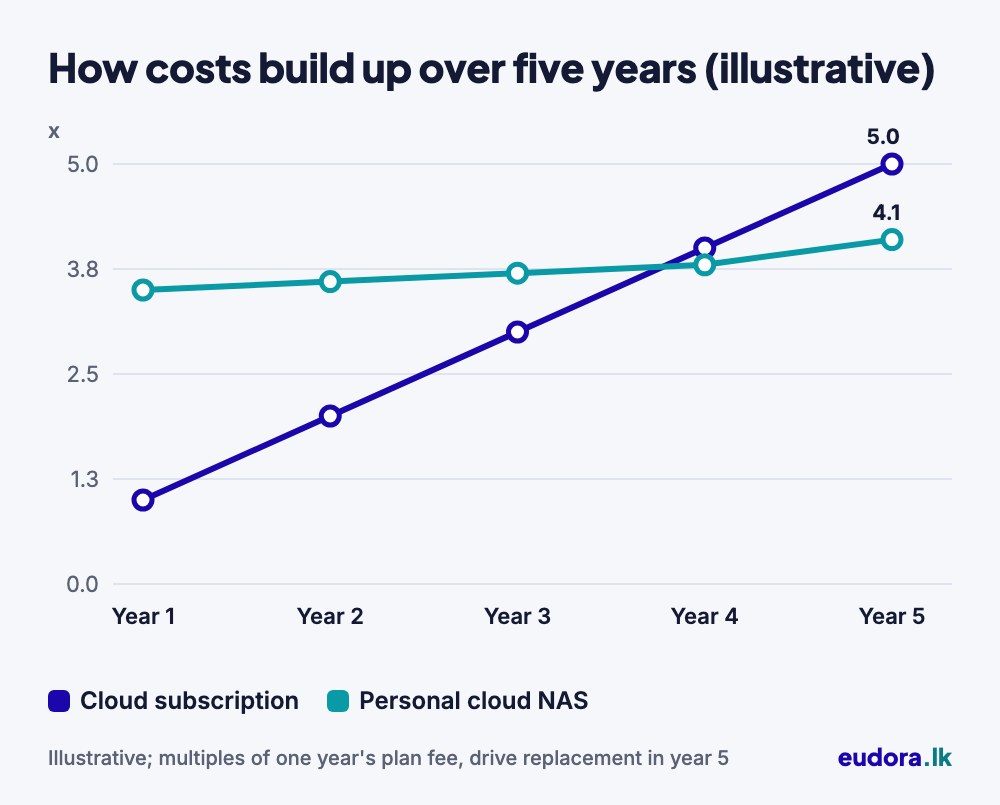
Cloud plans look inexpensive month by month, but the fee never stops, and the plan size you need tends to grow as phones take larger photos and longer 4K videos. Microsoft 365 Family, for example, costs Rs 37,000 a year for up to six people, each with 1TB of OneDrive storage plus the Office apps, which is good value if you use the apps too. Over five years that adds up to Rs 185,000. Google One and iCloud+ plans of 2TB cost a similar order per year, and larger plans cost more.
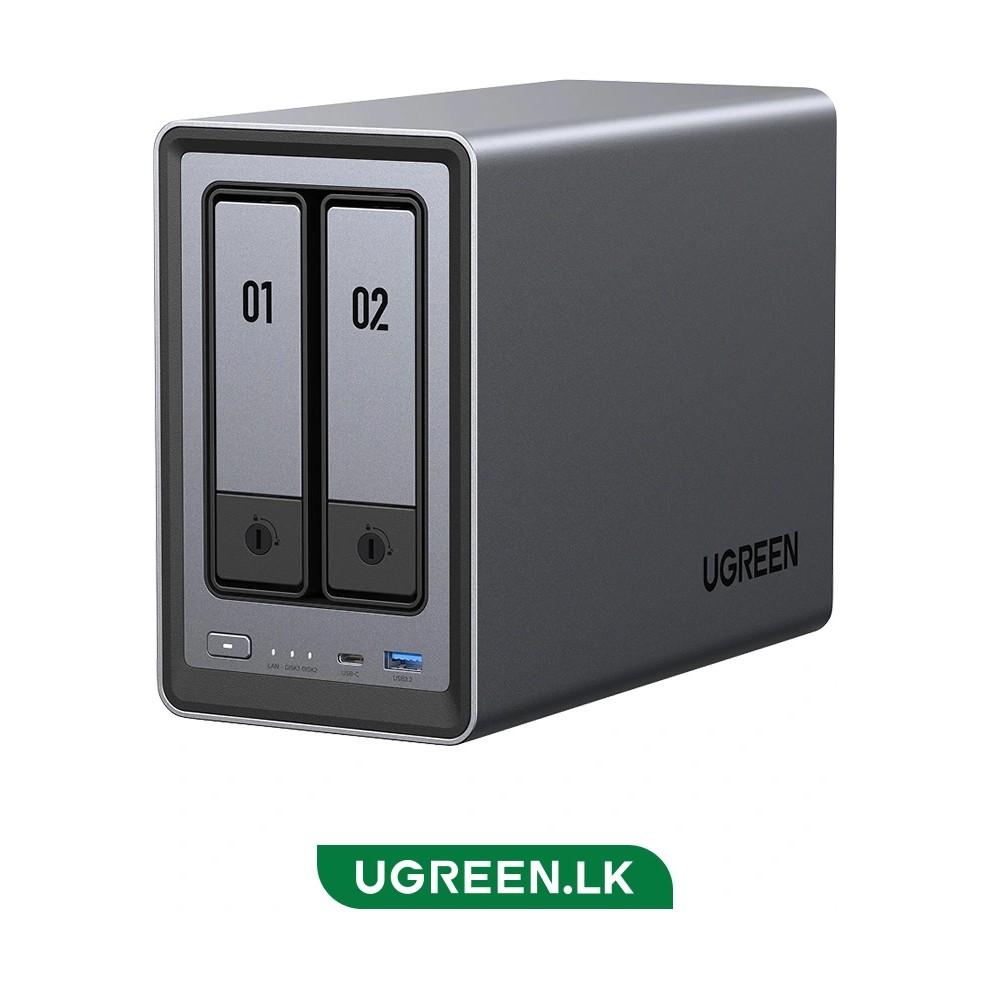
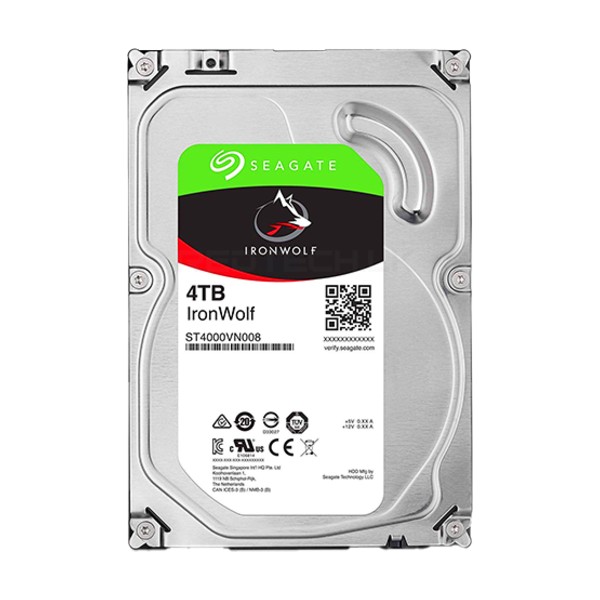
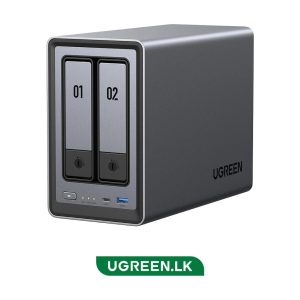
A personal cloud costs more on day one. A UGREEN NASync DH2300 two-bay NAS at Rs 88,500 with two Seagate IronWolf 4TB NAS drives at Rs 49,500 each comes to Rs 187,500, giving 4TB of mirrored storage, where each file is stored on both drives. A more powerful UGREEN NASync DXP2800 at Rs 149,500, with an Intel N100 processor, 8GB of memory and 2.5-gigabit networking, comes to Rs 248,500 with the same drives, and can also run photo recognition, media streaming and more apps. After that, there is no subscription, only electricity and an occasional drive replacement. For a family with large photo and video libraries, a NAS usually becomes cheaper than equivalent cloud storage within a few years; for someone with a few hundred gigabytes, a subscription is cheaper and simpler.
Privacy and control
Major cloud providers protect data well and encrypt it in transit and at rest, but your files sit on someone else’s servers, governed by their terms and the laws where those servers are located. For businesses, that matters under Sri Lanka’s data protection law; our article on data residency and the PDPA explains the considerations. A NAS keeps files under your own roof and control, which many families prefer for personal photos and documents, and many small businesses prefer for customer records. The trade-off is that security becomes your responsibility: strong passwords, two-factor sign-in, regular updates and careful remote access settings.
Important: Never expose a NAS directly to the internet by opening router ports. Use the manufacturer’s secure remote access service or a VPN, keep the NAS software updated, and turn on two-factor sign-in. Internet-facing NAS boxes are a favourite target for ransomware.
Speed and convenience
At home, a NAS is much faster than cloud storage because files move over your local network instead of your internet connection. Copying a large video folder that would take hours to upload to the cloud takes minutes to a NAS, especially with a gigabit or faster wired connection; our Ethernet cable guide explains the cabling. Away from home, NAS access depends on your home internet upload speed, which is usually slower than a cloud data centre. Cloud services win on convenience: nothing to set up, no hardware to look after, and sharing links work from anywhere instantly.
Backup: why one copy is never enough
The most important point in this comparison is that a single storage location, whether NAS or cloud, is not a full backup. The well-known 3-2-1 rule says to keep three copies of important data, on two different types of storage, with one copy off-site. A NAS with two mirrored drives protects against one drive failing, but not against theft, fire, flooding, lightning or ransomware that encrypts everything on your network. A cloud account protects against those, but can be lost through a hacked account, a mistaken deletion that syncs everywhere, or a lapsed payment.
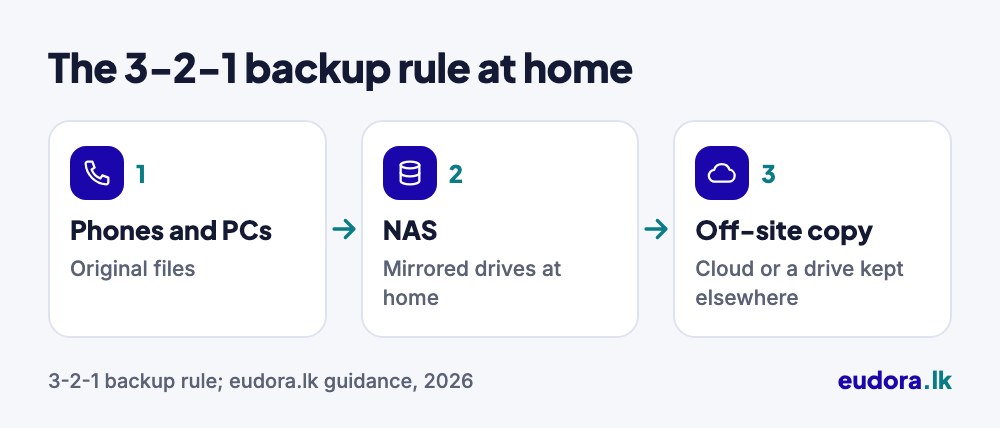
The practical answer for most households and small offices is to combine both: use the NAS as the main store for photos, videos and documents, and back up the most important folders from the NAS to a cloud service or to a portable drive such as the WD My Passport 4TB at Rs 62,500, kept at another location. Many NAS apps can do this automatically. Our phone photo backup guide and office backup guide explain the details.
Power cuts, heat and placement
A NAS runs around the clock, so give it a cool, ventilated spot away from direct sunlight and dust, close to your router. Use NAS-rated drives designed for continuous running rather than ordinary desktop drives. Because sudden power cuts can damage data, connect the NAS and router to a small UPS, such as the AWP AID650 at Rs 9,900, which keeps them running through short outages and allows a clean shutdown in longer ones. A two-bay NAS with drives typically uses about as much power as a Wi-Fi router plus a small fan, which our electricity cost guide helps you estimate.
Who should choose what
Choose a cloud subscription if you have less than a terabyte or so of data, want zero maintenance, or already pay for Microsoft 365 or Google One for other reasons. Choose a personal cloud NAS if your family has large photo and video libraries, you want to stop paying ever-rising storage fees, you value keeping files at home, or your office needs a shared file server. Choose both if your data is irreplaceable, which for family photos it almost always is.
Setting up a NAS the right way
Setup is far simpler than it used to be. Insert the drives, connect the NAS to your router with an Ethernet cable, install the phone app and follow the steps to create a storage pool, usually mirrored across two drives. Create a separate user account for each family member or staff member rather than sharing one login, so each person sees their own files and shared folders only where you choose. Turn on automatic photo backup from each phone, map a network drive on each computer, and enable snapshots if the NAS supports them, which keep earlier versions of files so that an accidental deletion or ransomware attack can be rolled back. Finally, set up an automatic copy of the most important folders to a cloud service or external drive, and test restoring a file once so you know it works.
If you would prefer not to do this yourself, our team installs and configures NAS systems for homes and offices, including user accounts, phone backup, secure remote access and off-site backup. Our IT support team can also look after updates and health checks for business systems.
-
 Microsoft
 365 Family – 12-Month Subscription (up to 6 people)
Rs 37,000
Add to cart
-
 UGREEN
 NASync DXP2800 2-Bay NAS – Intel N100, 8GB DDR5, 2.5GbE (Diskless)
Rs 149,500
Add to cart
-
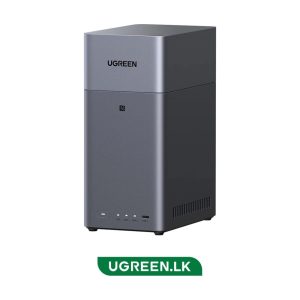 UGREEN
 NASync DH2300 2-Bay NAS – Personal Cloud Storage (Diskless)
Rs 88,500
Add to cart
-
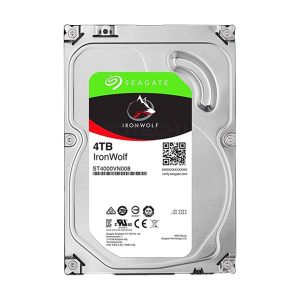 Seagate
 IronWolf 4TB NAS Hard Drive – 3.5-inch SATA
Rs 49,500
Add to cart
Frequently asked questions
Is a NAS cheaper than cloud storage?
For large amounts of data over several years, usually yes. For small amounts, a cloud plan is cheaper and simpler.
Can I reach my NAS files from my phone when away from home?
Yes, through the manufacturer’s app and secure remote access service, depending on your home internet upload speed.
Is a NAS a backup?
It is one copy. Keep another copy off-site, in the cloud or on a drive stored elsewhere.
What drives should I use in a NAS?
NAS-rated drives designed for continuous use, such as Seagate IronWolf, ideally two in a mirrored pair.
Do I need a UPS for a NAS?
It is strongly recommended, because sudden power cuts can corrupt data on drives that are writing.
This article was originally published on eudora.lk.