Multi-factor authentication stops most password attacks, but on its own it treats every sign-in the same: the accountant at her office desk, the same account signing in from a country she has never visited at 3am, and a script using an old email protocol that cannot do MFA at all. Conditional Access, part of Microsoft Entra ID, adds judgement. It looks at who is signing in, to which app, from which device and location, and how risky the sign-in looks, then decides whether to allow it, ask for stronger proof or block it. It is one of the most effective security controls available to Microsoft 365 customers, and many small businesses already pay for it without using it. This guide explains how it works, which licences include it, six starter policies and how to roll them out safely.
From passwords to sign-in rules
Each Conditional Access policy has three parts: assignments (which users and which apps), conditions (such as location, device platform, client app or sign-in risk) and controls (grant with requirements, such as MFA or a compliant device, or block). When someone signs in, Entra ID evaluates every policy that applies and enforces the combined result.
| Signal | Example condition | Example response |
|---|---|---|
| User or group | Administrators | Require phishing-resistant MFA |
| Application | Finance or HR app | Require a compliant, managed device |
| Location | Countries you do not operate in | Block sign-in |
| Device state | Not enrolled in Intune | Allow web access only, block downloads |
| Client app | Legacy protocols such as POP or basic SMTP auth | Block |
| Sign-in risk (P2) | Unfamiliar location and anonymous IP | Require MFA or block |
The point is to make strong checks where they matter and keep friction low elsewhere. Our guide to multi-factor authentication covers the methods these policies can require.
Security defaults versus Conditional Access
Security defaults
- Included in every Microsoft 365 tenant
- Requires MFA registration for all users
- Blocks legacy authentication
- All-or-nothing; no exceptions or location rules
- Cannot require compliant devices
Conditional Access
- Fine-grained policies per user, app and device
- Location, device and risk conditions
- Report-only testing mode
- Needs Entra ID P1 licences
- Needs careful design and testing
You use one or the other: security defaults must be turned off before custom Conditional Access policies take effect. Microsoft has also begun creating Microsoft-managed Conditional Access policies in eligible tenants, such as requiring MFA for admin portals, which appear in report-only or on mode and can be reviewed in the admin centre.

Licensing and cost
Conditional Access needs Microsoft Entra ID P1 for each user it applies to. P1 is included in Microsoft 365 Business Premium, Microsoft 365 E3 and E5, and Enterprise Mobility + Security. Risk-based conditions need P2. For businesses on Business Basic or Standard, the choice is usually between upgrading to Business Premium, which also adds Intune and Defender for Business, or buying P1 separately.
For most small businesses on Microsoft 365, Business Premium is the better value, because it bundles Conditional Access with device management and endpoint protection. Our article on Microsoft 365 price changes in 2026 covers the plan prices.
Six starter policies
- Require MFA for all users on all cloud apps, excluding only emergency access accounts.
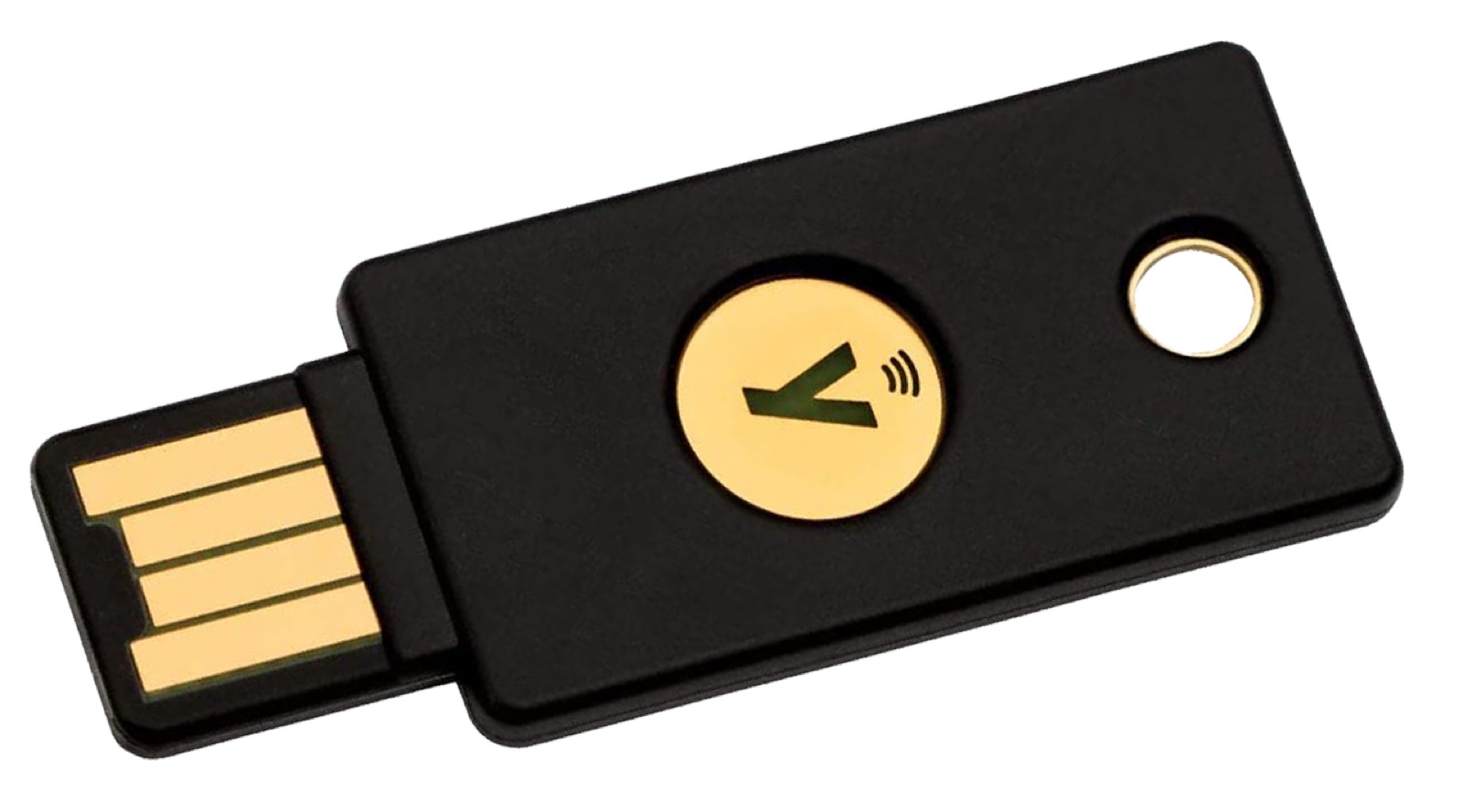
- Require phishing-resistant MFA for administrators, such as passkeys, FIDO2 security keys or Windows Hello for Business.
- Block legacy authentication, which cannot do MFA and is used heavily in password spraying.
- Require a compliant or hybrid-joined device for sensitive apps such as finance, HR and admin portals.
- Block or challenge sign-ins from countries where you have no staff or customers, with a travel exception group.
- Control guests: require MFA for guest users and limit which apps they can reach.
Phishing-resistant methods matter most for administrators, who are the top target. Our guide to rolling out passkeys explains how to get staff onto them.

Rolling out without locking yourself out
- Create two emergency access (break-glass) accounts with long passwords stored securely, excluded from every policy.
- Make sure every user has registered an MFA method before enforcing MFA.
- Create new policies in report-only mode and review the sign-in logs for a week.
- Turn policies on one at a time, starting with a pilot group.
- Document each policy: purpose, assignments, exclusions and owner.
The sign-in logs and the Conditional Access insights workbook show which policies would have applied to each sign-in, so you can see who would have been blocked before it happens. Pay particular attention to shared mailboxes, service accounts, scanners that email documents and older line-of-business apps, which are the usual casualties of blocking legacy authentication.
| Common problem | Likely cause | Fix |
|---|---|---|
| Scanner can no longer email scans | Uses basic SMTP authentication | Move to SMTP relay, Graph or a supported connector |
| Staff locked out abroad | Country block policy | Travel exception group with time-limited membership |
| Admin cannot sign in | Strong MFA required but not registered | Register a passkey or security key before enforcing |
| Users prompted too often | Overlapping policies or short sessions | Review sign-in frequency settings |
Review policies at least twice a year, and whenever the business changes: a new office country, a new finance system, a merger or a move to passkeys. Policies tend to accumulate exclusions over time, a user added here, a service account there, and each exclusion is a gap. List every excluded account in a review, confirm it still needs to be excluded, and remove the rest. Check that the emergency access accounts still work and that their sign-ins trigger an alert, because any use of them should be rare and visible.
If you use Google Workspace
Google Workspace offers similar controls through Context-Aware Access, available in Enterprise and some other editions, which can restrict access to apps based on device security, IP address and location. 2-Step Verification enforcement and security keys for admins are available more widely. The principles are the same: strong verification everywhere, stronger for admins, and access to sensitive apps only from trusted devices.

Our cybersecurity team can design and test a Conditional Access baseline for your Microsoft 365 tenant, set up emergency access accounts and move admins to phishing-resistant sign-in.
Frequently asked questions
What is Conditional Access?
A Microsoft Entra ID feature that applies rules to sign-ins, requiring MFA, a managed device or blocking access based on conditions.
Is Conditional Access included in Microsoft 365?
It needs Entra ID P1, which is included in Microsoft 365 Business Premium, E3 and E5, but not in Business Basic or Standard.
What are security defaults?
A free set of baseline protections that require MFA and block legacy authentication. Turn them off only when Conditional Access replaces them.
Can Conditional Access lock everyone out?
A badly designed policy can, which is why you use report-only mode, pilot groups and excluded emergency access accounts.
Do I need Entra ID P2?
Only for risk-based policies and identity protection features. Most small businesses start well with P1.
Want a Conditional Access baseline designed and tested for your tenant? Get in touch with Eudora Technology to talk about your project.