Passwords have been the weak point of online security for as long as most of us have been online. People reuse them, write them down, pick ones that are easy to guess, and type them into convincing fake websites. Two-factor authentication helped, but codes sent by SMS can still be tricked out of people. Passkeys are the replacement the technology industry has agreed on. Instead of typing a password, you unlock your account with your fingerprint, face or phone screen lock, and the sign-in is tied cryptographically to the real website, so a fake page cannot use it. Google, Apple, Microsoft, WhatsApp, Facebook and many shopping and payment services already support passkeys. This guide explains how they work, why they are safer, and how to set them up on the accounts you use every day.
Key points
- A passkey is a sign-in key stored on your phone, computer or password manager, unlocked with your fingerprint, face or screen lock.
- Passkeys cannot be phished: they only work on the genuine website or app they were created for.
- There is nothing to remember, reuse or leak in a data breach.
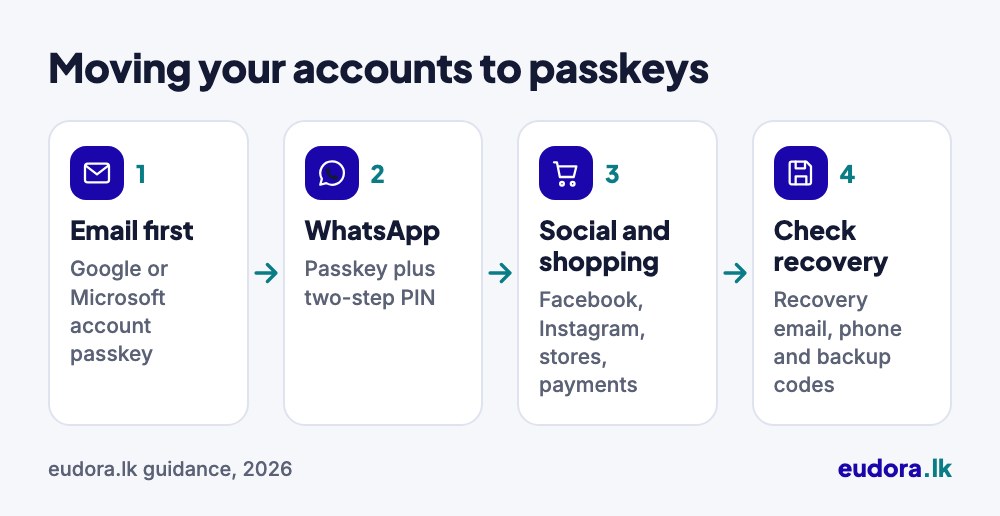
- Start with your email account, then WhatsApp, social media, shopping and payment accounts.
- Passkeys sync across your devices through Google, Apple or a password manager, so losing one phone does not lock you out.
How passkeys work
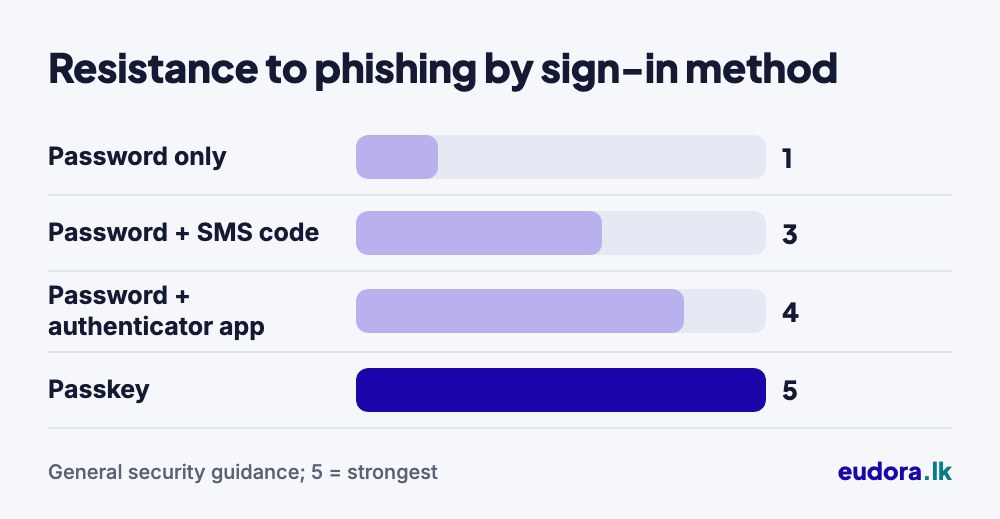
When you create a passkey, your device makes a pair of cryptographic keys: a private key that stays on your device or in your password manager, and a public key that the website stores. When you sign in, the website sends a challenge, your device asks for your fingerprint, face or PIN to unlock the private key, and signs the challenge. The website checks the signature with the public key. The private key never leaves your device, and nothing reusable is sent. Because the passkey is bound to the real website’s address, a lookalike phishing site simply cannot ask for it.
| Password | Password plus SMS code | Passkey | |
|---|---|---|---|
| Something to remember | Yes | Yes | No |
| Can be phished on a fake site | Yes | Yes, code can be relayed | No |
| Leaks in a website breach | Yes, if poorly stored | Password can | No, only a public key is stored |
| Reused across sites | Often | Often | Never; one per site |
| Speed of signing in | Slow | Slowest | Fast |
Where your passkeys are kept
Passkeys need a safe home, called a passkey provider. On Android phones, it is usually Google Password Manager, which syncs passkeys across your Android devices and Chrome. On iPhone, iPad and Mac, it is iCloud Keychain. Samsung phones can also use Samsung Pass. On Windows, passkeys can be stored with Windows Hello or a password manager. Many password managers, including those included with security suites such as ESET HOME Security Premium at Rs 4,300 and Kaspersky Premium at Rs 4,200, can store passwords and help you move towards passkeys. Choose one main provider and stick with it, so all your passkeys are in one place.
Setting up passkeys on everyday accounts
Start with the accounts that would cause the most damage if stolen, beginning with email, because email can reset everything else.
- Google account and Gmail: open your Google Account, choose Security, then Passkeys and security keys, and create a passkey on your phone and computer.
- Microsoft account (Outlook, OneDrive, Xbox): open account.microsoft.com, choose Security, then sign-in options, and add a passkey or use Windows Hello.
- Apple Account: iPhones already use device passkeys for many sign-ins; keep two-factor authentication on and iCloud Keychain enabled.
- WhatsApp: open Settings, then Account, then Passkeys, and create one so re-registering on a new phone needs your screen lock as well.
- Facebook and Instagram: look in Accounts Centre under Password and security for passkey options on your phone.
- Shopping and payments: many online stores and payment services offer passkeys in their security settings; turn them on where available.
Tip: Keep two-factor authentication turned on even after adding passkeys, and save your backup codes. Some accounts still allow password sign-in as a fallback, and those need protecting too.
What signing in looks like day to day
Once a passkey is set up, signing in becomes noticeably quicker. On your phone, the website or app shows a prompt asking whether you want to sign in with your saved passkey; you touch the fingerprint sensor or look at the camera, and you are in. On a laptop with a fingerprint reader or Windows Hello camera, it works the same way. On a laptop without one, you can approve the sign-in from your phone. There is no password to type, no code to wait for and nothing to copy from a text message. Many people find that after a few weeks they no longer remember the passwords for their main accounts at all, which is exactly the point.
Some services still ask for a password occasionally, for example when changing security settings, and a few offer passkeys only in their mobile app at first. Support grows every month, so check the security settings of your important accounts every few months and switch them over as passkeys become available.
Shared and family devices
Passkeys belong to a person’s account, not to a device in general, so be careful on shared computers and tablets. Give each family member their own user account on a shared laptop, with their own Windows Hello or screen lock, so their passkeys are not available to everyone who uses the machine. On a family tablet, avoid saving personal passkeys at all, and use the QR code method from your own phone instead. For children’s devices, keep passkeys in the child’s own account and set up the parental controls described in our parental controls guide.
What if I lose my phone?
This is the most common worry, and the answer is reassuring. Passkeys stored in Google Password Manager or iCloud Keychain sync to your other signed-in devices, so a new phone gets them back when you sign in to your Google or Apple account. To make sure that recovery works, keep your Google or Apple account itself secure, with a recovery email and phone number set up, and consider adding a second device such as a tablet or laptop. For very important accounts, a hardware security key kept at home is an extra backup. Our guide to wiping a phone before selling it explains how to move everything to a new phone safely.
Before switching, make sure the recovery options on your Google or Apple account are current: an up-to-date recovery phone number and email, and printed backup codes stored somewhere safe at home. That small step is what makes passkeys a relief rather than a risk.
Using a passkey on someone else’s computer
If you need to sign in on a computer that is not yours, such as at an office or a relative’s house, choose the option to use a passkey from another device. The computer shows a QR code; scan it with your phone, confirm with your fingerprint, and you are signed in, without your passkey being copied to that computer. Remember to sign out afterwards.
Passkeys for families and older relatives
Passkeys are often easier for older relatives than passwords, because there is nothing to remember or type. Help them set up passkeys on their Google or Apple account and WhatsApp, make sure screen lock is on, and explain that they will only ever be asked to use their fingerprint on their own phone, never to share a code with anyone. That simple rule protects against most of the scams circulating in Sri Lanka; our article on online scams lists the common ones.
Passkeys and small businesses
For businesses, the biggest gains come from protecting email and admin accounts. Microsoft 365 and Google Workspace both support passkeys and security keys for staff, and administrators can require phishing-resistant sign-in for admin roles. Combine passkeys with the security settings in our two-factor authentication guide, and our cybersecurity team can roll them out across your staff.
What passkeys do not fix
Passkeys protect sign-in, not everything else. Malware on your phone, someone who knows your phone PIN and has the phone in hand, or a scammer persuading you to approve a payment can still cause harm. Keep your phone updated, use a strong screen lock rather than a simple pattern, install apps only from official stores and treat unexpected requests for payments or codes with suspicion. Our guide to the new digital ID covers identity scams to watch for.


Frequently asked questions
What is a passkey?
A sign-in method that uses a cryptographic key on your device, unlocked with your fingerprint, face or screen lock, instead of a password.
Are passkeys safer than passwords?
Yes. They cannot be phished, reused or leaked in a website breach.
Does a website see my fingerprint?
No. Your fingerprint or face only unlocks the passkey on your own device; it is never sent to the website.
What happens if I change phones?
Passkeys synced through Google or Apple come back when you sign in on the new phone.
Can I still use my password?
On many sites, yes, as a fallback. Keep it strong and protected with two-factor authentication.
This article was originally published on eudora.lk.