For many shops in Sri Lanka, the till is still a cash register, a hand-written stock book or an old accounting program on a single computer at the counter. It works until the owner wants to know which products sell best, how much stock is left in the second branch, why the cash does not match, or how to start selling online without counting stock twice. Cloud point-of-sale (POS) systems were built for exactly these problems. Sales, stock and customer data live in the cloud and update in real time across every till, branch and online channel, and the owner can see the day’s numbers on a phone from anywhere. This guide explains how cloud POS works, the features that matter for local shops, the hardware you need and how to keep selling when the internet or power goes down.
Key points
- Cloud POS stores sales, stock and customers centrally, so every till, branch and the online store see the same numbers.
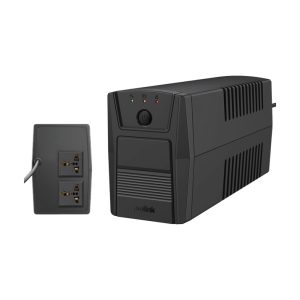
- Offline mode is essential: the till must keep selling during internet outages and sync later.
- Look for inventory features that match your trade: variants, batches and expiry, serial numbers or recipes.
- A backup 4G connection and a UPS keep the counter running through outages and power cuts.
- Make sure you can export your data and that it is backed up, because it is your business’s record.
How cloud POS differs from traditional POS
A traditional POS system runs on a computer in the shop, with its own database. Reports are only available at that computer, each branch has its own separate system, and backups depend on someone remembering. A cloud POS system runs the till software on a tablet, phone or PC, but the data is stored centrally by the provider. Every sale updates stock immediately, managers see reports from anywhere, and the provider handles updates and backups. This is the cloud native model applied to retail: the software is delivered as a service, scaled and maintained by the provider. Our guide to what cloud native means explains the wider idea.
| Traditional POS on a shop PC | Cloud POS | |
|---|---|---|
| Where data lives | On the shop computer | In the provider’s cloud, cached on each till |
| Reports | At the shop computer only | On any phone or computer |
| Multiple branches | Separate systems, manual consolidation | One view of stock and sales |
| Online store | Stock counted separately | Can sync stock with the online store |
| Updates and backups | Your responsibility | Handled by the provider |
| Cost | Mostly up-front licence | Monthly subscription per till or location |
Features that matter for local shops
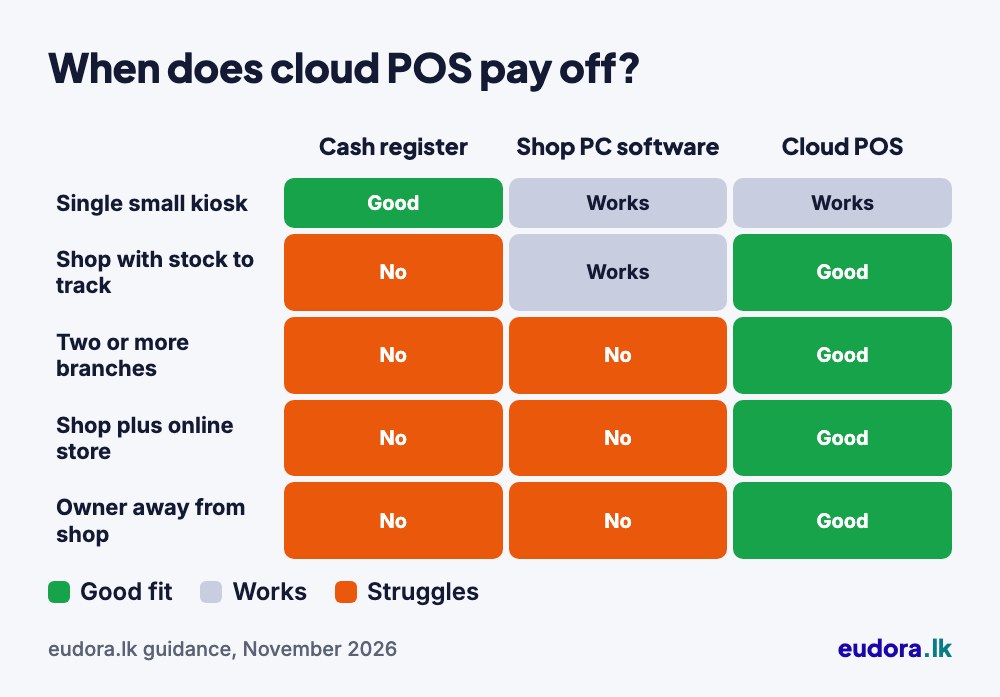
Every POS system rings up sales; the differences are in the details that match your trade. Make a list of what your shop actually needs before comparing systems.
- Offline mode: the till keeps selling, printing receipts and recording payments without internet, then syncs automatically when the connection returns.
- Inventory depth: product variants (size, colour), batch and expiry tracking for pharmacies and food, serial numbers for electronics, and recipes or ingredients for cafes.
- Multi-branch stock: stock per location, transfers between branches and low-stock alerts.
- Payments: cash, card terminals from local banks, QR payments and split payments.
- Local tax and receipts: correct tax handling and receipts in the languages your customers use.
- Customer accounts: loyalty points, credit customers and SMS or WhatsApp receipts.
- Staff controls: individual logins, permissions for discounts and refunds, and a log of who did what.
- Integrations: accounting software, online store and delivery platforms.
Tip: Ask for a free trial and test it during a busy hour with your own products. Speed at the counter and how easy it is for staff to learn matter more than a long feature list.
Linking the shop and the online store
Selling online and in store from the same stock is where cloud POS really helps. When the POS and online store share stock levels, an item sold at the counter disappears from the website, and online orders reduce shop stock automatically. Without that link, shops either keep separate stock for online sales or risk selling items they no longer have. Many cloud POS systems integrate with WooCommerce or offer their own online store. If you are building an online store, check the integration before choosing either system. Our eCommerce Starter Store at Rs 89,900 includes a WooCommerce store with card payments, cash on delivery and delivery options, and our guide to handling traffic spikes on online stores covers hosting it.
Hardware: what you need at the counter
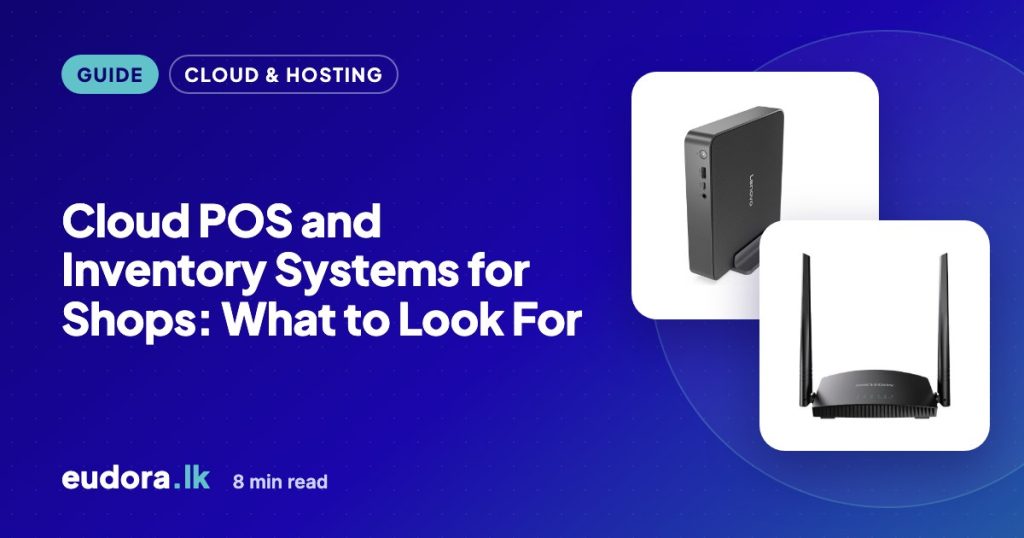
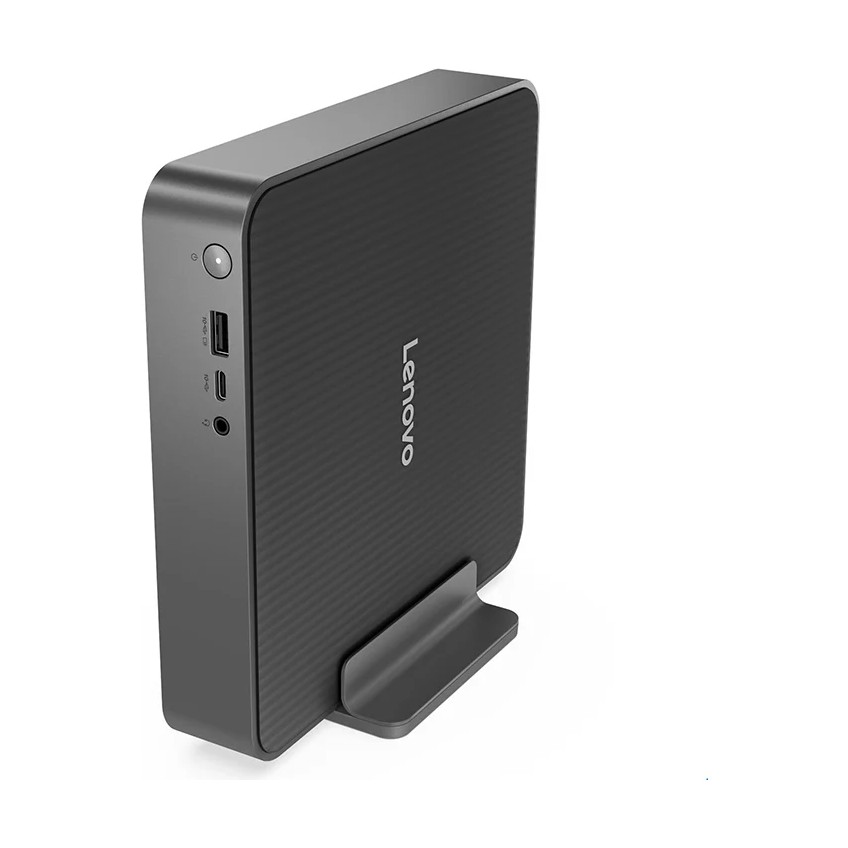
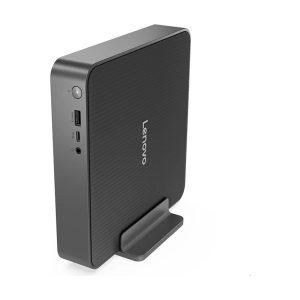
Cloud POS software runs on ordinary hardware. A tablet or a small PC runs the till app, a receipt printer prints bills, a barcode scanner speeds up checkout and a cash drawer connects to the printer. Many shops use an Android tablet for each till; others prefer a compact PC with a touch screen or a laptop. A Lenovo IdeaCentre Mini at Rs 280,000 mounts behind a monitor and makes a tidy, reliable counter computer, while an ASUS Vivobook 15 at Rs 194,900 works for a shop that also needs a laptop for the office. Check the POS vendor’s list of supported printers and scanners before buying them separately.
Keeping the counter running
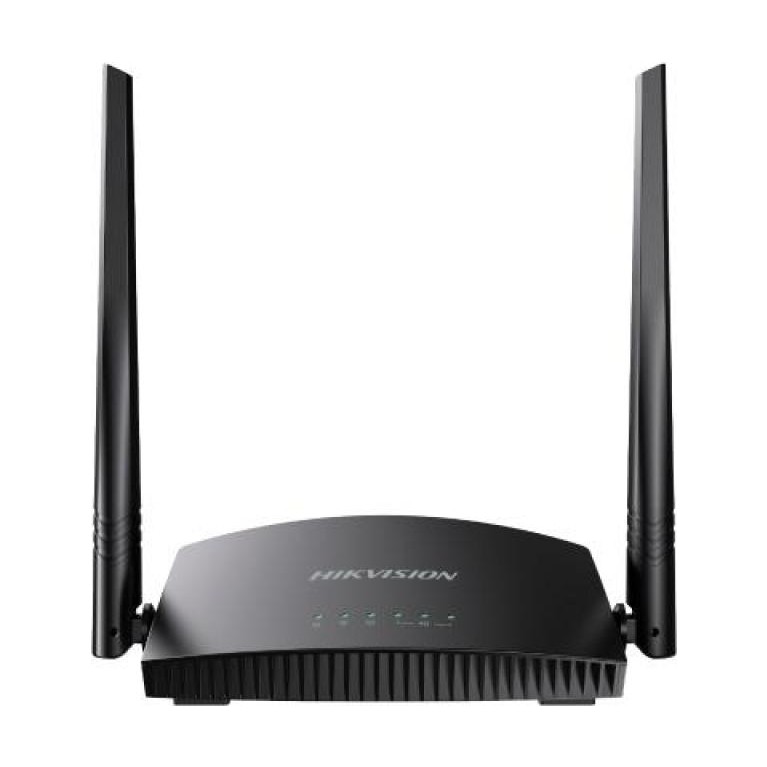
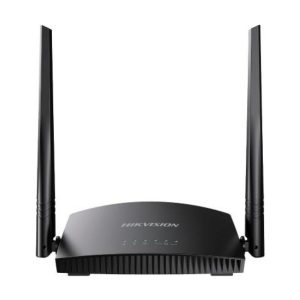
Cloud systems depend on internet and power, and in many parts of Sri Lanka both can drop at the worst moment. Offline mode covers short internet outages, but card terminals, online payments and stock sync need a connection, and nothing works without power. Two inexpensive additions make a big difference. A 4G router such as the Hikvision DS-3WR4G3N at Rs 15,400 provides a backup internet connection over a mobile data SIM, and a UPS such as the PROLiNK PRO701SFC at Rs 11,000 keeps the router, till and receipt printer running through short power cuts. Together they cost Rs 26,400. Our 4G router guide and UPS buying guide explain the options.
Your data is your business record
With cloud POS, years of sales, stock and customer records live with the provider. Before signing up, check that you can export everything in a standard format such as spreadsheets, what happens to the data if you stop paying, and where it is stored. Customer phone numbers, loyalty details and purchase histories are personal data under Sri Lanka’s Personal Data Protection Act, so the provider must keep them secure and you must use them fairly. Our guide to cloud data residency and the PDPA lists the questions to ask, and our cloud backup guide covers backing up the other computers in the shop.
Security at the counter
Give every staff member their own login and use permissions so only managers can give large discounts, process refunds or delete sales. Turn on two-factor authentication for the owner’s and managers’ accounts, especially for the web dashboard. Keep the counter computer or tablet updated and use it only for the POS. Review the activity log weekly; it is often the first place unusual refunds or voids show up. CCTV over the counter helps settle disputes; our guide to CCTV for shops covers placement.
Costs to compare
Cloud POS is usually priced per till or per location per month, with higher tiers adding inventory, multi-branch and integration features. Add card terminal fees, any transaction fees charged by the POS provider, hardware, and the time to set up products and train staff. Compare at least two or three systems over three years, including what it would cost to leave. Many subscriptions are billed in US dollars; our guide to budgeting cloud costs in rupees explains how to plan for exchange rate changes.
Using the reports
The real payoff of a cloud POS comes from the reports. Check best and worst sellers each month and adjust what you reorder. Watch stock that has not moved in ninety days and plan a clearance before it becomes dead money. Compare sales by hour and day to set staff rosters, and by branch to spot a location that needs attention. Track average bill value and the effect of promotions. None of this needs a data analyst; most systems show it on a dashboard that the owner can check on a phone each evening.
Setting it up
Start by cleaning your product list: consistent names, categories, barcodes and prices. Import it into the POS, set up staff accounts and payment methods, then run the new system alongside the old one for a week to catch problems. Train staff during quiet hours. Our IT support team can set up counter hardware, networking and backup internet, and our monthly IT support plan at Rs 9,900 keeps shop computers and the network looked after.
Frequently asked questions
Does a cloud POS work without internet?
Good systems have an offline mode that keeps selling and syncs later. Card payments and online features still need a connection.
Can I use a tablet as a till?
Yes. Many cloud POS systems run on Android or iPad tablets with a compatible receipt printer and scanner.
Can cloud POS sync with my online store?
Many integrate with WooCommerce or offer their own store, so stock stays the same across both.
Who owns the sales data?
You should. Check that you can export all data and what happens to it if you cancel.
Is cloud POS expensive?
It is usually a monthly fee per till. Compare the total over three years, including hardware and payment fees.
This article was originally published on eudora.lk.