Almost every week someone in Sri Lanka loses their WhatsApp, Facebook or email account to a scammer. The pattern is familiar: a message from a “friend” asking you to forward a code they sent by mistake, a fake parcel or prize page asking for an OTP, or a password reused from an old site that was breached years ago. Once inside, the scammer messages your contacts asking for money, reload cards or more codes, and the damage spreads quickly. Two-factor authentication, sometimes called two-step verification, stops most of these attacks, because a stolen password alone is no longer enough. This guide explains the different methods, then walks through turning on protection for WhatsApp, Gmail, Facebook, Instagram and Microsoft accounts.
Key points
- Two-factor authentication means signing in needs something you know (a password or PIN) and something you have (your phone or a security key).
- WhatsApp’s two-step verification PIN stops most account hijacks; turn it on today.
- Authenticator apps and passkeys are safer than SMS codes, which can be intercepted or phished.
- Never share a verification code with anyone, even a friend or someone claiming to be from a bank or company.
- Save backup codes somewhere safe so you can get back in if you lose your phone.
How account takeovers happen
Most hijacks do not involve clever hacking. They rely on getting you to hand over a code or on passwords that have already leaked.
| Trick | How it works | What stops it |
|---|---|---|
| “I sent you a code by mistake” | A hijacked friend’s account asks you to forward a WhatsApp or Facebook code; it is your account’s code | Never share codes; WhatsApp two-step PIN |
| Fake login or prize page | A link leads to a page that copies Facebook or a bank and asks for password and OTP | Passkeys, checking the address, not clicking links |
| Reused password | A password leaked from another site is tried on your email | Unique passwords and two-factor authentication |
| SIM swap | A criminal persuades a mobile operator to move your number to a new SIM and receives your SMS codes | Authenticator apps or passkeys instead of SMS |
| Malware or fake apps | An app reads notifications and codes on the phone | Install apps only from official stores; antivirus |
The methods, from weakest to strongest
Not all second factors are equal. Any of them is far better than a password alone, but some resist scams much better than others.
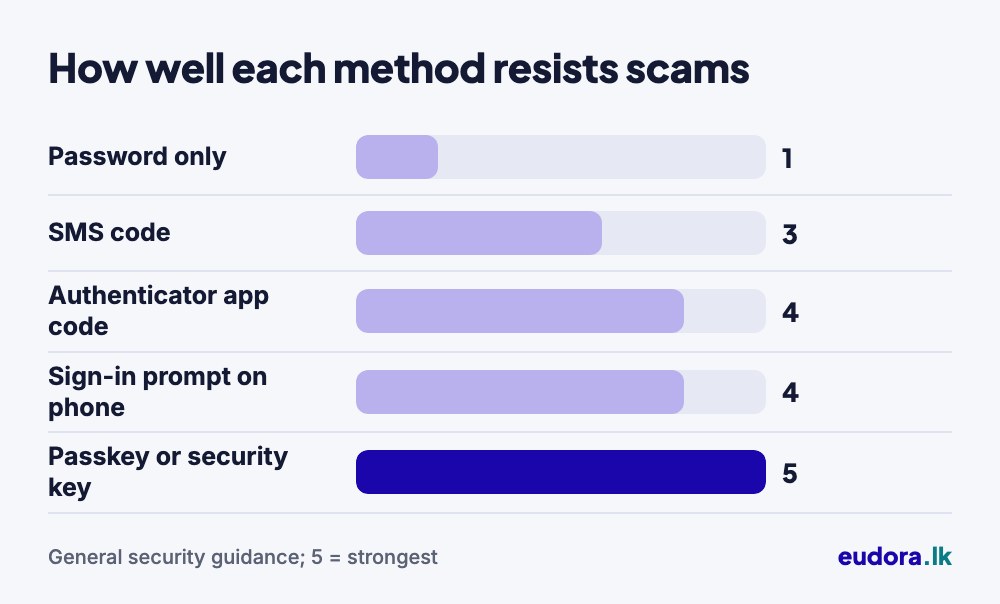
SMS codes are the most common and easiest to set up, but they can be intercepted through SIM swaps, and scammers can trick people into reading them out. Authenticator apps such as Google Authenticator or Microsoft Authenticator generate codes on your phone that change every 30 seconds and do not depend on the mobile network. Prompts that ask “Is this you trying to sign in?” on a trusted phone are convenient, but only if you never approve a prompt you did not expect. Passkeys and security keys are the strongest: they use cryptography tied to the real website, so a fake page cannot use them even if you are fooled.
WhatsApp: turn on two-step verification
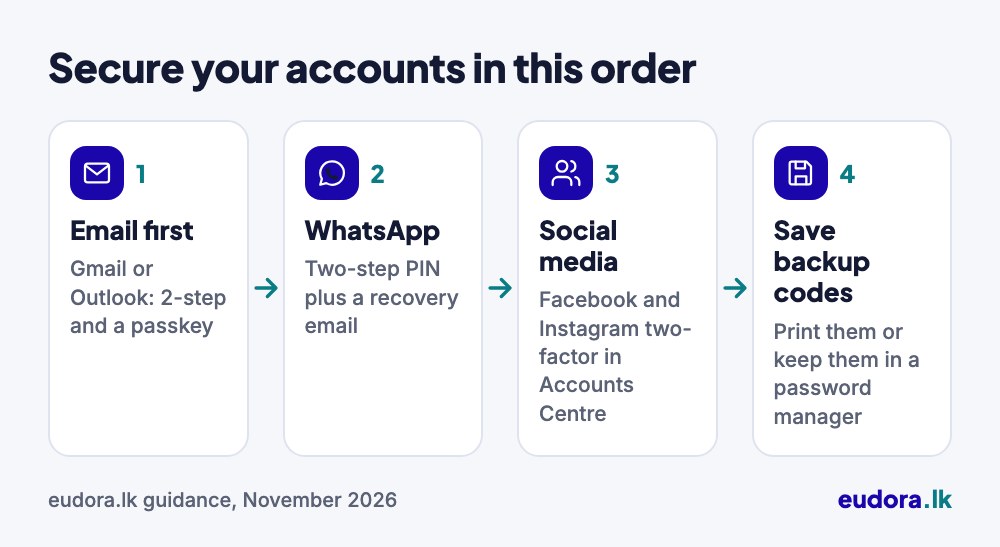
WhatsApp accounts are the most frequently hijacked in Sri Lanka, because they reach every contact instantly. WhatsApp’s two-step verification adds a six-digit PIN that is needed whenever your number is registered on a new phone. Even if a scammer tricks you into sharing the SMS code, they cannot finish taking over the account without the PIN.
- Open WhatsApp, then Settings, then Account, then Two-step verification, and choose Turn on.
- Enter a six-digit PIN that is not your birthday or phone number, and confirm it.
- Add an email address so you can reset the PIN if you forget it.
- WhatsApp will ask for the PIN occasionally so you remember it; never share it with anyone.
- Also set up a passkey for WhatsApp on phones that offer it, under Settings, Account, Passkeys.
Warning: If a friend’s account asks you for a code “sent by mistake”, call them on a normal phone call first. Their account has almost certainly been taken over.
Gmail and your Google account
Your email account is the master key to everything else, because password resets for banks, social media and shopping sites go there. Protect it first. In your Google account, open Security, then 2-Step Verification, and follow the steps. Google prompts on a signed-in phone are the default; add an authenticator app as a second method, and print or save the backup codes.
Better still, create a passkey. In the same Security section, choose Passkeys and create one on your phone or computer. You then sign in with your fingerprint, face or screen lock, and there is no password for a fake page to steal. Google also offers a Security Checkup that reviews recovery options and devices signed in to your account; run it once a year.
Facebook and Instagram
Meta manages security for Facebook and Instagram together in Accounts Centre. Open Settings, then Accounts Centre, then Password and security, then Two-factor authentication, and choose the account. Pick an authentication app if you can, or SMS if not, and save the recovery codes Meta provides. Turn on login alerts so you are told about sign-ins from new devices.
While you are there, check “Where you’re logged in” and remove devices you do not recognise. Page and business owners should make sure every admin has two-factor authentication, because one weak admin account can lose a whole business page. Our guide to privacy settings in AI and Meta apps covers other settings worth reviewing.

Microsoft, banking and other accounts
For a Microsoft account, used for Outlook, OneDrive and Windows, open account.microsoft.com, then Security, and turn on two-step verification with the Microsoft Authenticator app. Microsoft also supports passkeys and lets you go passwordless entirely. For work accounts on Microsoft 365 or Google Workspace, your company should require it for everyone; our licensing guide covers Microsoft 365 business plans.
Sri Lankan banking apps already use one-time passwords for transactions. Treat those codes exactly like cash: no bank, delivery company or government office will ever ask you to read one out over the phone. Our article on online scams in Sri Lanka lists the tricks circulating now, including fake payment links.
Backup codes and lost phones
Two-factor authentication depends on your phone, so plan for losing it. Every service offers backup or recovery codes when you turn it on. Print them or save them in a password manager, not as a photo in the same phone. Add a second method where possible, such as a second phone or a security key. If you change phones, move your authenticator app accounts before wiping the old phone; Google and Microsoft authenticators can back up to your account. Our guide to wiping a phone before selling it covers the order to do things in.
Password managers make it easier
Two-factor authentication works best with strong, unique passwords, and nobody can remember dozens of those. A password manager stores them securely, fills them in on real websites only, and warns you about reused or leaked passwords. Many include an authenticator too. Kaspersky Premium at Rs 4,200 includes Kaspersky Password Manager, and ESET HOME Security Premium at Rs 4,300 includes ESET Password Manager, alongside antivirus and safe browsing protection. Built-in options from Google and Apple are free and work well too. Our antivirus guide compares the security suites.


Signs an account has been taken over
Act quickly if you notice any of these: friends say you sent them odd messages asking for money or codes, you are suddenly logged out of WhatsApp or Facebook, you receive password reset or new sign-in emails you did not request, or your email has new forwarding rules or sent messages you did not write. Change the password from a device you trust, sign out of all other sessions in the account’s security settings, turn on two-factor authentication if it was off, and check that the recovery phone number and email are still yours. Warn your contacts through a different channel so they do not fall for messages sent in your name.
Helping family members
Parents and older relatives are often targeted because scammers expect them to trust messages. Sit down with them for half an hour and set up WhatsApp two-step verification, Google 2-Step Verification and Facebook two-factor authentication on their phones, then write the PINs and backup codes on paper kept somewhere safe at home. Explain one rule: never share a code. Our parental controls guide covers the children’s side, and our team can set up phones and accounts for you with our smart device setup service at Rs 1,500 per device.
Frequently asked questions
What is the difference between two-factor and two-step verification?
They mean much the same thing: signing in needs a second proof as well as your password or PIN. Different apps use different names.
Is SMS two-factor authentication safe?
It is much safer than a password alone, but codes can be phished or intercepted through SIM swaps. Use an authenticator app or passkey where offered.
What if I forget my WhatsApp PIN?
Use the email reset link you added when setting it up. Without it, you may have to wait several days before WhatsApp lets you re-register.
What is a passkey?
A sign-in method that uses your phone or computer’s screen lock instead of a password. It cannot be used on fake websites.
Someone took over my WhatsApp. What do I do?
Re-register WhatsApp on your phone with your number to log them out, turn on two-step verification, warn your contacts and report the account to WhatsApp.
This article was originally published on eudora.lk.