A laptop battery is a consumable part, but how long it lasts depends a great deal on how it is treated. Two identical laptops bought on the same day can end up years apart: one still managing a full working day after three years, the other lasting barely an hour and starting to bulge. Sri Lanka’s heat makes the difference bigger, because high temperature is the single biggest cause of early battery wear. The good news is that most of what helps costs nothing. This guide explains why lithium-ion batteries wear out, the charge-limit settings built into most laptops, how to check battery health, which chargers and power banks are safe, and when it is time for a replacement.
Key points
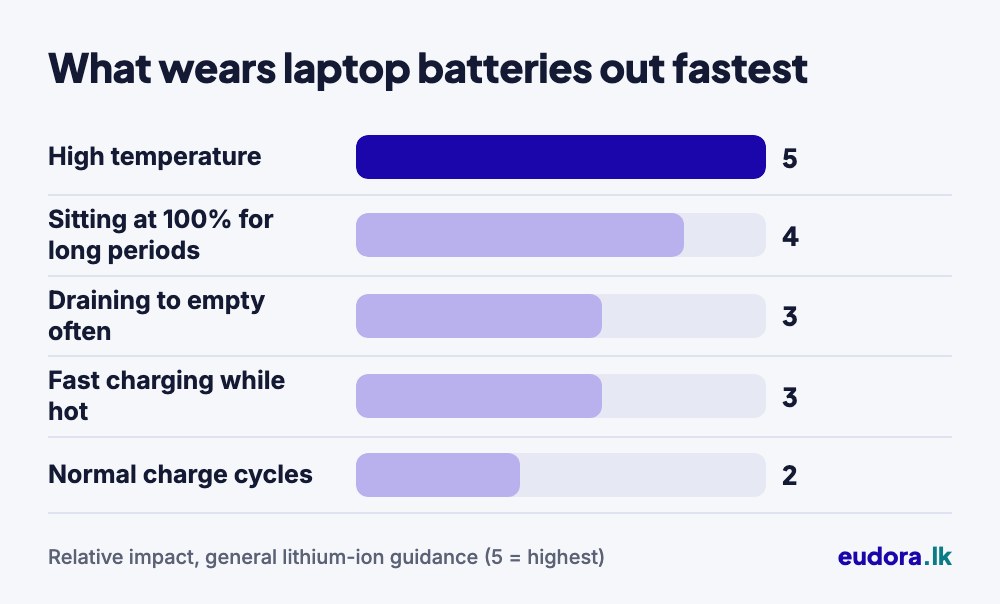
- Heat, keeping the battery at 100 percent for long periods and draining it to empty are what wear batteries out fastest.
- Most laptops have a setting that stops charging at 60 or 80 percent; turn it on if the laptop lives on a desk.
- Use a charger with the right wattage and USB Power Delivery support; cheap unbranded chargers can damage batteries.
- The Windows battery report shows how much capacity your battery has lost.
- A swollen battery is a fire risk: stop using the laptop and have the battery replaced.
Why laptop batteries wear out
Laptops use lithium-ion or lithium-polymer cells. Every charge and discharge causes tiny chemical changes that reduce the amount of energy the cells can hold. Manufacturers usually design laptop batteries to keep about 80 percent of their original capacity after somewhere between 300 and 1,000 full charge cycles, depending on the cells and how they are used. A cycle is 100 percent of capacity used, so charging from 50 to 100 percent twice counts as one cycle.
Three things speed up the wear far more than normal use. Heat accelerates the chemical reactions that degrade the cells, which is why a laptop used on a bed or in a hot car ages quickly. Sitting at 100 percent charge for long periods, especially while warm, stresses the cells. And regularly draining the battery to zero puts strain on the cells and can trigger protective shutdowns.
Turn on the charge limit
If your laptop spends most of its life plugged in at a desk, the most effective thing you can do is stop it charging to 100 percent. Most manufacturers include a setting that holds the battery at around 60 or 80 percent while on the charger. You lose a little runtime when you unplug, but the battery lasts considerably longer overall.
| Brand | Where to find it | Typical setting |
|---|---|---|
| Lenovo | Lenovo Vantage, Power, Conservation mode | Holds around 55 to 60 percent |
| ASUS | MyASUS, Customisation, Battery Health Charging | Balanced (80 percent) or Maximum lifespan (60 percent) |
| Dell | Dell Power Manager or Dell Optimizer, Battery settings | Primarily AC use, or a custom start and stop level |
| HP | HP Power Manager or BIOS battery settings | Adaptive charging or a fixed limit on business models |
| MSI | MSI Center, Battery Master | Balanced (80 percent) or Best for battery (60 percent) |
| MacBook | Settings, Battery, Optimised Battery Charging | Learns your routine and delays charging past 80 percent |
Before a day of travel or a long power cut, switch the limit off the night before so the battery is full when you need it. Many apps offer a one-time full charge option for exactly that.
Tip: If you work through scheduled power cuts, an 80 percent limit is a good compromise: most of the runtime, with much less wear than sitting at 100 percent all day.
Keep it cool
Heat is the battery’s main enemy, and Sri Lankan rooms in the afternoon are already warm. Keep the laptop on a hard, flat surface so air can reach the vents; beds, cushions and laps block airflow and trap heat. A simple stand that lifts the back of the laptop improves airflow and typing posture. Clean the vents and fans every year or so, since dust buildup makes the fans work harder and raises temperatures. Never leave a laptop in a parked car or in direct sun.
Heavy tasks such as video calls with background effects, video editing and games heat both the processor and the battery. When doing heavy work plugged in, a charge limit matters even more, because the battery sits full and hot at the same time. Our desk ergonomics guide covers laptop stands and external keyboards.
Use the right charger
Modern laptops increasingly charge over USB-C using USB Power Delivery, which negotiates the right voltage and current between charger and laptop. A good USB-C charger of the right wattage is safe to use with any compliant laptop; a charger with less wattage than the laptop expects will charge slowly or not at all under load. A 65W charger suits most thin laptops; larger performance laptops may need 100W or a barrel-plug charger from the manufacturer.
The UGREEN Uno 65W GaN charger at Rs 11,000 has two USB-C ports and one USB-A, enough for a laptop and a phone together, and GaN chargers run cooler and smaller than older designs. Our GaN charger guide explains wattage and ports in more detail. Avoid unbranded chargers and cables of unknown quality: poor voltage regulation and missing safety protections can damage batteries and, in the worst cases, cause fires.

Power banks for laptops
During power cuts, a laptop power bank keeps work going after the battery runs down. Not every power bank can charge a laptop: it needs USB-C Power Delivery output of at least 45W, ideally 65W to 100W. The UGREEN Nexode 20,000mAh 100W power bank at Rs 19,000 can charge most USB-C laptops at full speed and adds roughly one extra full charge to a typical thin laptop. Smaller 20W power banks are fine for phones but too slow for laptops in use. Our power bank guide compares capacities.

Check your battery’s health
Windows can show exactly how worn the battery is. Open Command Prompt and type powercfg /batteryreport, then open the HTML file it creates. Compare the design capacity with the full charge capacity. On a MacBook, open System Settings, then Battery, then the information button next to Battery Health, which shows maximum capacity as a percentage.

Above 80 percent is healthy. Between 60 and 80 percent the battery is usable but runtime will be noticeably shorter. Below 60 percent, or when the laptop reports “service recommended”, plan a replacement. The report also shows cycle count, which helps judge whether wear is normal or caused by heat.
Swollen batteries: stop using it
Sometimes a lithium battery swells as gas builds up inside the cells. Signs include a trackpad that no longer clicks properly, a keyboard that bulges, a gap appearing along the edges of the case, or a laptop that rocks on a flat table. A swollen battery can catch fire if punctured or bent. Stop using the laptop, unplug it, keep it away from heat and flammable materials, and have the battery replaced by a technician. Never try to puncture or press a swollen battery flat.
Warning: Do not keep charging a laptop with a bulging case. Swelling usually gets worse over time, and charging adds heat.
Storing a laptop you are not using
A spare laptop left in a drawer for months can come back with a battery that will not charge. Lithium batteries slowly discharge on their own, and a battery left completely empty for a long time may fall below the level its protection circuit allows to recharge. Before storing a laptop, charge it to around 50 percent, shut it down fully rather than putting it to sleep, and keep it somewhere cool and dry. Top it up to about half every two or three months. The same applies to laptops kept as backups for staff or students.
Replacing a worn battery
Replacing the battery is often the best value way to extend a good laptop’s life, especially business models with easy access. Use a genuine or high-quality replacement from a reputable supplier, because cheap batteries may lack the protection circuits that prevent overcharging and overheating. Thin consumer laptops with glued batteries are harder to service, so leave those to a technician. If the laptop is also slow, consider an SSD at the same time; our SSD upgrade guide explains how, and our used laptop checklist shows how to judge battery health before buying.



Frequently asked questions
Is it bad to leave a laptop plugged in all the time?
Modern laptops stop charging when full, but sitting at 100 percent while warm still adds wear. Turn on the charge limit if it stays plugged in.
Should I let my battery drain to zero?
No. Occasional full cycles are fine, but regularly draining to empty stresses the battery. Charge it before it falls below about 20 percent.
Can I use my phone charger for my laptop?
Only if it supports USB-C Power Delivery and enough wattage. A 20W phone charger will charge a laptop very slowly or not at all.
How long should a laptop battery last?
Typically three to five years of regular use before runtime drops noticeably, less in hot conditions.
What should I do with an old laptop battery?
Do not put it in household rubbish. Hand it to an electronics recycler or a shop that accepts batteries.
This article was originally published on eudora.lk.