A good used or refurbished laptop can be excellent value. Business laptops coming off company leases are built to last, have better keyboards than many new budget models, and often sell for well under half their original price. A bad one is money thrown away: a swollen battery, a failing drive, a cracked hinge, or a machine still locked to its previous owner’s company. In Sri Lanka, used laptops are sold everywhere from large shops to social media pages, with very different standards of testing. This checklist covers what to look at, what to ask and which tests to run before you pay, so you buy a laptop that works for years rather than weeks.
Key points
- “Refurbished” should mean tested, cleaned and repaired with a warranty; “used” usually means sold as it is.
- Check that the processor supports Windows 11, because Windows 10 no longer receives security updates.
- Run a battery report and a drive health check; both take minutes and reveal the most expensive problems.
- Ex-company laptops can be locked to the old owner’s management system; check before paying.
- Compare the total cost, including a new battery or SSD, with a new entry-level laptop.
Used, refurbished and ex-lease: what the words mean
There is no legal definition of refurbished, so the word is used loosely. What matters is what the seller actually did and what they promise afterwards.
| Term | What it usually means | Warranty | Risk |
|---|---|---|---|
| Manufacturer refurbished | Returned to the maker, repaired and certified | Often 6 to 12 months | Low |
| Seller refurbished | Tested, cleaned and repaired by the shop, parts replaced as needed | Varies, often 1 to 6 months | Low to medium |
| Ex-lease or ex-corporate | Business laptop returned after a 3 to 4 year lease | Depends on the seller | Medium |
| Used, private sale | Sold as it is by the previous owner | None | Higher |
Grades such as A, B and C usually describe cosmetic condition only: scratches, worn keys and marks on the lid. A grade A laptop can still have a tired battery. Ask what was tested and replaced, not just what grade it is.
Start with the processor and Windows 11
Microsoft ended Windows 10 support in October 2025, so any laptop you buy should run Windows 11. The main requirements are a supported processor, TPM 2.0 security chip and Secure Boot. Broadly, Intel Core processors from the 8th generation onwards and AMD Ryzen 2000 series onwards are supported. A Core i5-7300U, for example, is not, however good the rest of the laptop is.
The processor model is shown in Settings, then System, then About, or on a sticker near the keyboard. A seller offering an older laptop “with Windows 11” may have installed it using a workaround; such installs may not receive all updates. Our guide on Windows 10 end of support explains the risks of staying on unsupported versions.
The 15-point checklist
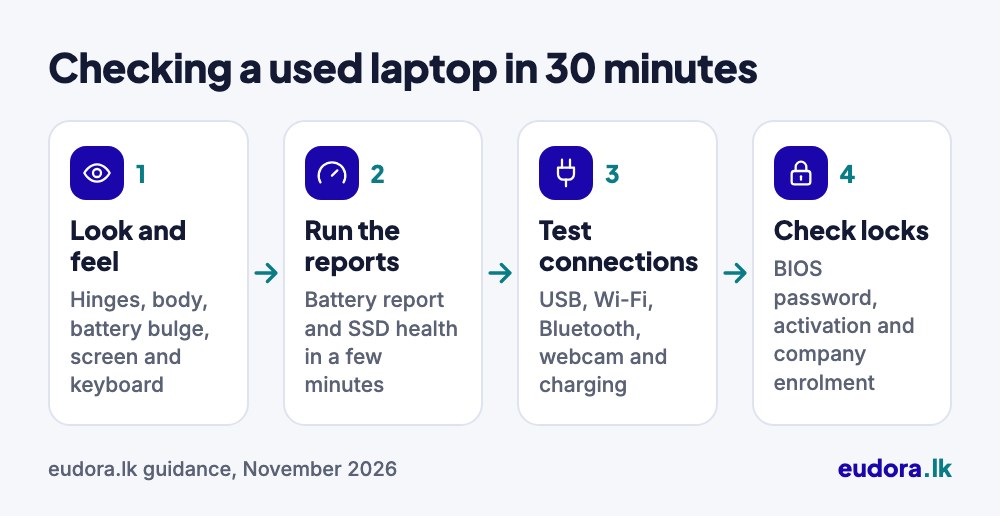
Take the laptop’s charger, a USB flash drive, earphones and your phone when you go to look. The checks below take about half an hour.
- 1. Body and hinges: open and close the lid several times. Hinges should be firm, with no cracks around them.
- 2. Battery bulge: look at the base and the keyboard for any lifting or a trackpad that does not click evenly. A swollen battery is a fire risk; walk away.
- 3. Screen: show a plain white and a plain black image, looking for dead pixels, bright patches and lines.
- 4. Keyboard: type every key in a text document, including the function row.
- 5. Trackpad: test clicking, scrolling and two-finger gestures.
- 6. Ports: test each USB port with the flash drive, plus HDMI if you can.
- 7. Charging: confirm the charger is the right wattage and the laptop charges with it.
- 8. Battery health: run a battery report, described below.
- 9. Drive health: check SMART status, described below.
- 10. Memory and storage: confirm the amounts in Settings match the advert.
- 11. Wi-Fi and Bluetooth: connect to your phone hotspot and pair your earphones.
- 12. Webcam, microphone and speakers: make a short test video.
- 13. Windows activation: Settings, then System, then Activation should show it is activated.
- 14. Company locks: check for BIOS passwords and management enrolment, described below.
- 15. Paperwork: get a receipt with the serial number, warranty terms and the seller’s details.
Checking battery health
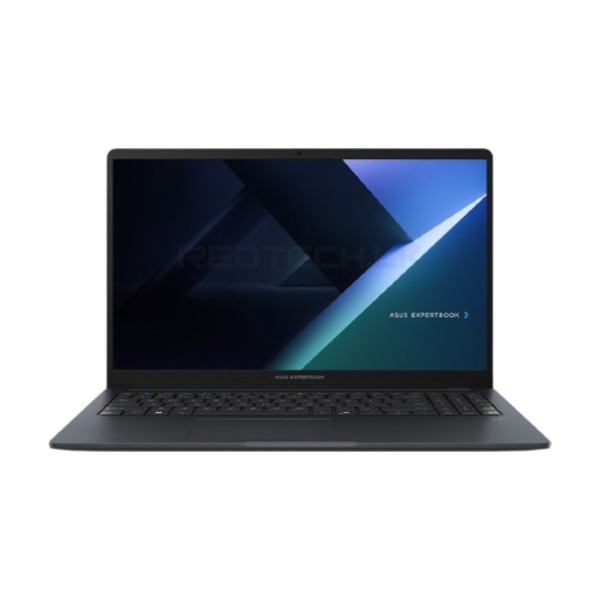
Laptop batteries lose capacity with every charge cycle. A battery that held eight hours when new may manage two after four years of daily use. Windows can tell you exactly how worn it is. Open Command Prompt and type powercfg /batteryreport, then open the report file it creates. Compare “Design capacity” with “Full charge capacity”.
Above 80 percent is good. Between 60 and 80 percent is usable but will need replacing within a year or two. Below 60 percent, budget for a new battery straight away, or negotiate the price down. Replacement batteries for popular business models are widely available; for thin consumer laptops they can be harder to find and fit.
Checking the drive
Most laptops from the last six years have an SSD. Like hard drives, SSDs report their own health through SMART data. A free tool such as CrystalDiskInfo shows the health status, total data written and any reallocated or error counts. “Good” with a health percentage above 80 is fine. “Caution” or “Bad” means the drive should be replaced before you trust it with anything important.
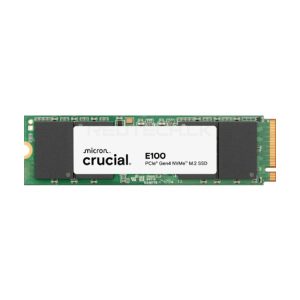
If the laptop still has a mechanical hard drive, plan to replace it with an SSD: the difference in speed is dramatic, and a 480GB NVMe SSD such as the Crucial E100 costs Rs 33,000. Check first whether the laptop has an M.2 slot or only a 2.5-inch bay. Our SSD upgrade guide walks through the process, and our article on hard drive health explains the warning signs in more detail.
Hidden company locks
This is the problem most buyers do not know about. Business laptops are often enrolled in their company’s device management system, such as Microsoft Intune with Windows Autopilot. If the company did not release the laptop when it was sold, it may ask for a company sign-in when Windows is reset, or install company policies automatically. Some also have a BIOS or firmware password set by the old IT department.
Ask the seller to reset Windows in front of you, or at least restart into the BIOS setup screen to confirm there is no password. During Windows setup, a screen saying “Welcome to” followed by a company name means the laptop is still enrolled. A reputable refurbisher clears these before sale; a private seller may not know they exist.
Warning: Never buy a laptop whose seller cannot show it starting normally and reaching the Windows desktop with your own test account. A laptop that “just needs a password reset” may be stolen or locked.
Is it actually a good deal?
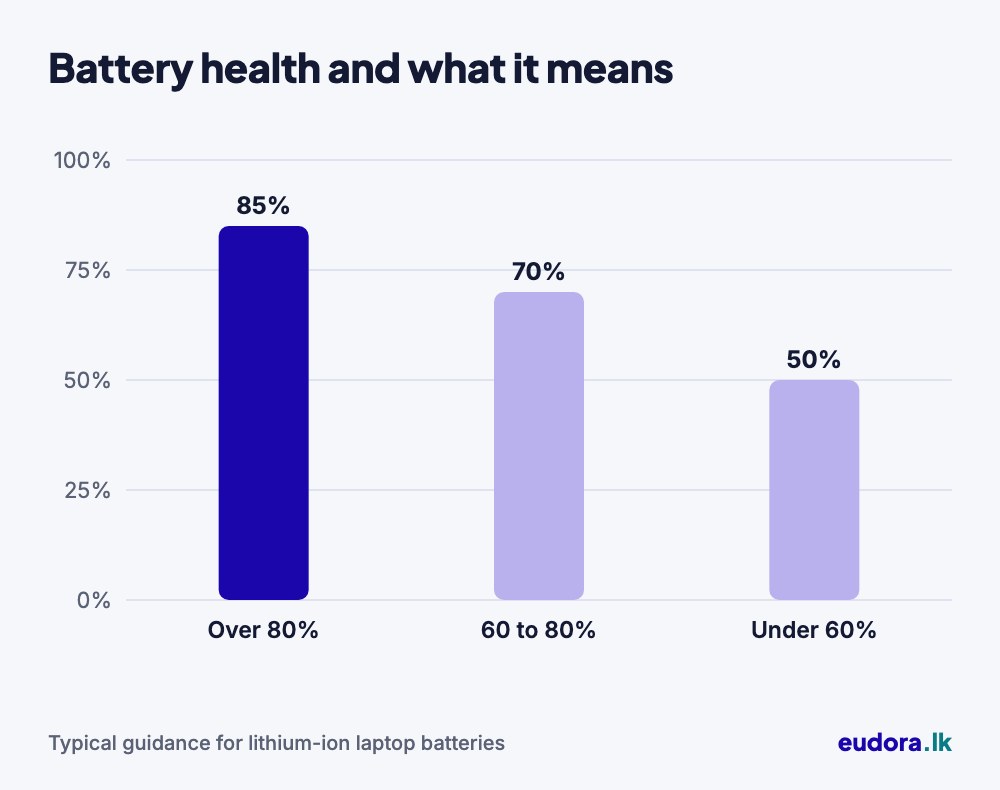
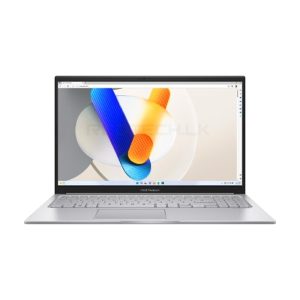
Compare the total cost with a new laptop, not just the sticker price. A new ASUS Vivobook 15 with a Core i3 costs Rs 194,900, and a new ASUS ExpertBook B1 business laptop with a Core 5 processor costs Rs 219,000, both with a full warranty and a fresh battery. A used laptop needing a battery and an SSD can end up surprisingly close to that.
As a general guide, a well-tested ex-lease business laptop that is three or four years old is fair value at roughly 35 to 55 percent of the price of a comparable new model, depending on condition and warranty. Anything older than about six years, or without Windows 11 support, is only worth buying for very light use or as a spare.
Good used buys include business ranges such as Lenovo ThinkPad T and X series, Dell Latitude and HP EliteBook, which were designed for heavy daily use and have parts readily available. Budget consumer models from the same years tend to age less well.
After you buy
Before putting personal files on a used laptop, reset Windows completely or reinstall it cleanly, create your own account, install all updates, and install antivirus. Change the charger if the original is worn or not genuine. Then back up your files from day one; our 3-2-1 backup guide explains a simple routine. Our technicians can check a laptop before you buy it, or set it up afterwards with our PC and laptop setup service at Rs 3,500.
Frequently asked questions
Is a refurbished laptop reliable?
A properly refurbished business laptop with a warranty is often more reliable than a new budget model. Reliability depends on the testing and parts replaced, so ask what was done.
How old is too old for a used laptop?
Avoid laptops that cannot run Windows 11. In practice that rules out most machines older than about 2018.
What battery health is acceptable?
Above 80 percent of design capacity is good. Below 60 percent, budget for a replacement.
Can I upgrade a used laptop?
Most business laptops allow memory and SSD upgrades. Check whether memory is soldered before planning an upgrade.
Should I buy a used laptop online?
Only from a seller who offers testing, a warranty and returns. For private sales, see and test the laptop in person.
This article was originally published on eudora.lk.