Video calls became part of everyday life for offices, schools and families in Sri Lanka during the pandemic and never went away. In 2026 they are quietly powered by AI: software removes the noise of a three-wheeler outside, blurs a messy room, writes captions as people speak and produces a summary of the meeting with action points. With so much handled by software, it is fair to ask whether a good webcam and headset still matter. They do, but for different reasons than before. This guide compares the AI features built into Teams, Google Meet and Zoom with what hardware adds, and recommends setups for home, office and meeting rooms.
Key points
- Teams, Meet and Zoom all use AI for noise suppression, background blur and captions; meeting summaries usually need paid AI add-ons.
- AI noise suppression cannot fix a poor microphone. A headset with a boom mic still makes the biggest difference to how you sound.
- Cameras matter most in poor light: a 1080p webcam with good light correction beats a laptop’s built-in 720p camera.
- Laptops with an NPU run camera and microphone effects more efficiently, saving battery on long calls.
- A Logitech Brio 100 webcam and H340 headset together cost Rs 23,000, a sensible upgrade for most home workers.
AI features you already have
| Feature | Microsoft Teams | Google Meet | Zoom |
|---|---|---|---|
| Background noise suppression | Yes | Yes | Yes |
| Background blur and replacement | Yes | Yes | Yes |
| Live captions | Yes | Yes | Yes |
| Translated captions | Premium plans | Some Workspace plans | Some plans |
| Meeting recap and action items | Copilot (paid) | Gemini in Meet (Workspace plans) | AI Companion (paid plans) |
Exact availability depends on your plan and changes often, so check your organisation’s settings. The core features, noise suppression, blur and captions, are free and switched on in the settings or the call menu of all three.
What software AI cannot fix
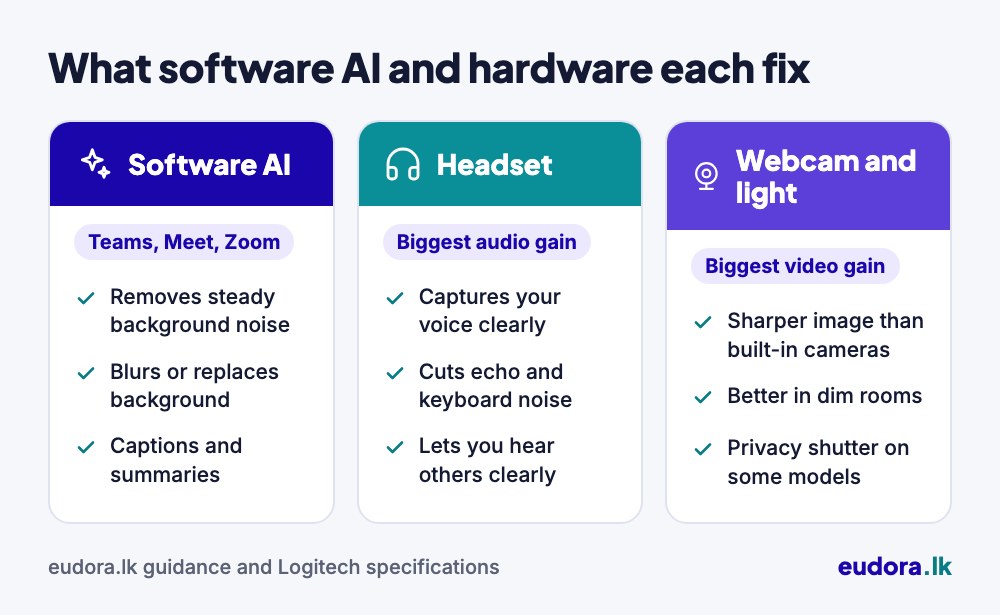
AI noise suppression is good at removing steady background noise: fans, traffic, rain on a tin roof, a generator next door. It is much less able to fix a voice that was never captured clearly in the first place. A laptop’s built-in microphone sits far from your mouth and picks up the room’s echo and keyboard clicks; the AI then has to guess what you said, and your voice can sound thin or robotic. A headset microphone close to your mouth gives the software a clean signal to work with.
The same is true for video. AI can brighten a dark image and blur the background, but a small, low-resolution laptop camera in poor light produces a grainy picture that no software can make sharp. Light correction features in good webcams, such as Logitech’s RightLight, help when the room is dim or lit from behind.
Tip: The least expensive upgrade is light. Sit facing a window or a lamp, not with a window behind you. Then add a headset. A new webcam comes third.
Webcams compared
| Webcam | Video | Focus and view | Microphone | Best for |
|---|---|---|---|---|
| Logitech C270 | 720p/30fps | Fixed, 55 degrees | Mono, noise-reducing | Basic calls on a tight budget |
| Logitech Brio 100 | 1080p/30fps | Fixed; privacy shutter | Built-in | Most home and office users |
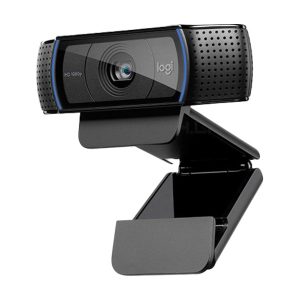
| Logitech C920 Pro | 1080p/30fps | Autofocus glass lens, 78 degrees | Dual stereo | Teachers, presenters, content creators |
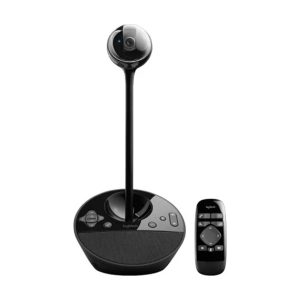
| Logitech BCC950 | 1080p | Motorised pan and tilt | Full-duplex speakerphone | Small meeting rooms of 1 to 4 people |
-
 Logitech
 BCC950 ConferenceCam – 1080p Camera with Speakerphone
Rs 77,000
Add to cart
-
 Logitech
 C920 Pro HD Webcam – 1080p, Autofocus, Stereo Mics
Rs 43,800
Add to cart
-
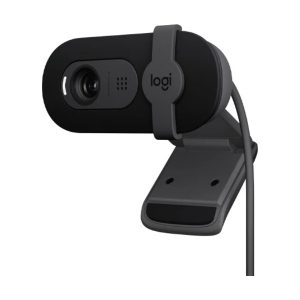 Logitech
 Brio 100 Full HD Webcam – 1080p with Privacy Shutter
Rs 13,500
Add to cart
-
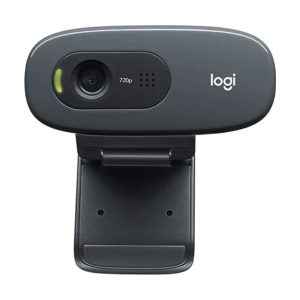 Logitech
 C270 HD Webcam – 720p
Rs 8,900
Add to cart
Headsets compared
For anyone who spends more than an hour a day on calls, a headset is the single best investment. USB headsets have their own sound chip, which avoids the hiss and buzz of some laptop audio jacks, and boom microphones with noise cancellation work with software AI rather than against it.
| Headset | Connection | Microphone | Best for |
|---|---|---|---|
| Logitech H151 | 3.5mm jack | Rotating boom | Phones and laptops with a combo jack |
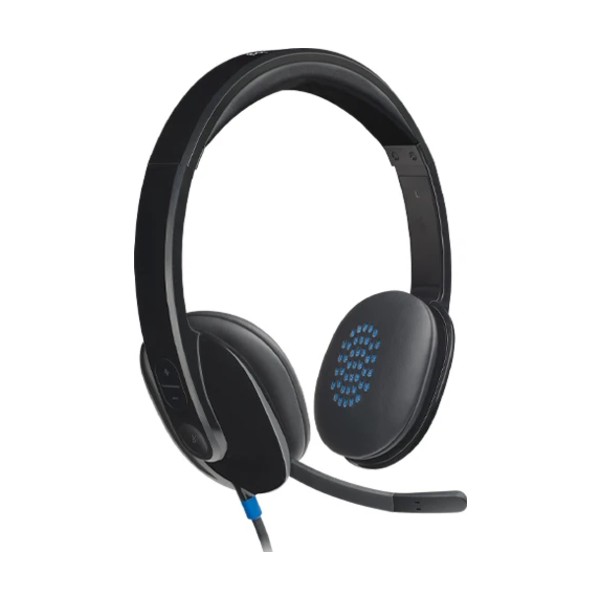
| Logitech H340 | USB-A | Noise-cancelling boom | Everyday calls and online classes |
| Logitech H390 | USB-A | Noise-cancelling, in-line controls | Office staff on calls all day |
| Logitech H540 | USB-A | Noise-cancelling, on-ear controls | Comfort for long calls |
Setting up for a better call in ten minutes
- Light your face. Face a window or put a lamp behind the screen. Avoid bright windows behind you.
- Raise the camera to eye level. Put the laptop on a stand or a few books, or use a webcam on top of a monitor.
- Choose the right devices in the app’s settings: your headset for speaker and microphone, your webcam for video.
- Turn on noise suppression and set it to high if you are in a noisy place.
- Test before important calls. Teams, Meet and Zoom all have a test call or preview screen.
- Close other apps that use the camera, microphone or bandwidth, such as cloud backups and video streaming.
For teachers and online classes
Teachers and tutors who run online classes benefit from a few extra steps. An autofocus webcam such as the C920 Pro keeps a whiteboard or book sharp when held up to the camera, and a headset lets students hear clearly over classroom noise. Live captions help students who are hard of hearing or following in a second language, and AI summaries can turn a recorded lesson into revision notes, if the school’s policy allows recording. Our guide to AI study tools for students covers the learning side.
Meeting rooms in small offices
A laptop on a meeting room table works for two people, but not for four. People at the far end sound distant and appear tiny. An all-in-one conference camera with a speakerphone, such as the Logitech BCC950, covers a small room with one USB cable: a camera that can pan and tilt to frame the group, and a full-duplex speakerphone so people can talk at the same time without cutting each other off. Mount it at the end of the table, facing the participants, and keep the room’s air conditioner and fans away from the microphone.
AI on the laptop: NPUs and Studio Effects
Newer laptops with a neural processing unit can run camera and microphone effects on that chip rather than the main processor. On supported Windows PCs these are called Windows Studio Effects and include background blur, eye contact correction, automatic framing and voice focus. They work in any calling app and use less battery than running the same effects in software. Our guide to AI PCs and NPUs explains which laptops have them. You do not need one to get good calls; a headset and decent light matter more.
Meeting summaries and privacy
AI meeting recaps are useful: a written summary, decisions and action items, available minutes after the call. They also record and process everything said. Before turning them on, tell participants, follow your organisation’s policy and be careful with client meetings and confidential discussions. In Sri Lanka, recordings of identifiable people are personal data, so businesses should follow the Personal Data Protection Act; our PDPA guide explains the basics, and our guide to AI privacy settings covers personal accounts.
Calls on a phone
Many calls happen on phones, especially for families and people on the move. Phones have better cameras than most laptops, so video quality is usually fine; sound is the weak point. Wired or Bluetooth earphones with a microphone near the mouth help a lot, and the same AI noise suppression works in the phone apps of Teams, Meet, Zoom and WhatsApp calls. Prop the phone at eye level rather than holding it, and face the light.
Recommended setups
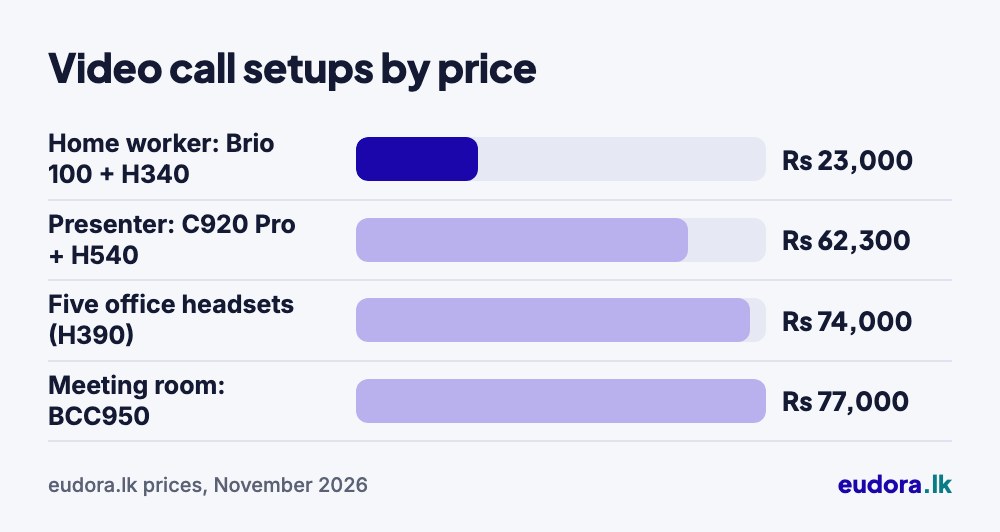
| Setup | Equipment | Price |
|---|---|---|
| Home worker or student | Logitech Brio 100 plus H340 headset | Rs 23,000 |
| Presenter, teacher or manager | Logitech C920 Pro plus H540 headset | Rs 62,300 |
| Small meeting room | Logitech BCC950 ConferenceCam | Rs 77,000 |
| Office of five call-heavy staff | Five Logitech H390 headsets | Rs 74,000 |
Internet and power matter too
No AI feature can rescue a call over a weak connection. Video calls need a steady upload speed as well as download, and Wi-Fi far from the router is a common cause of frozen video. A wired connection or a mesh Wi-Fi system fixes most problems; our slow Wi-Fi guide helps diagnose them. During power cuts, a small UPS for the router keeps calls going on a laptop’s battery. For office meeting rooms, our IT support team can install cameras, speakerphones and network points and test them with Teams, Meet or Zoom.
Frequently asked questions
Do I need a special webcam for AI features?
No. Background blur, noise suppression and captions run in Teams, Meet and Zoom with any webcam. A better webcam improves the picture the AI works with.
Is a headset better than AI noise cancellation?
They work together. A headset captures your voice clearly; AI then removes background noise. A headset makes the bigger difference.
Are meeting summaries free?
Usually not. Copilot in Teams, Gemini in Meet and Zoom AI Companion summaries depend on paid plans or add-ons.
Which webcam is best value?
For most people, the Logitech Brio 100: 1080p, light correction and a privacy shutter at a modest price.
Can AI translate a video call?
Some plans offer translated captions in many languages. Sinhala and Tamil support varies by service, so test before relying on it.
This article was originally published on eudora.lk.