Laptops keep getting thinner, and ports are what manufacturers remove first. Many current laptops have only two or three USB-C ports and perhaps a headphone jack, with no HDMI, no Ethernet and no SD card slot. That is fine on the move but awkward at a desk, where you want a monitor, a keyboard and mouse, a wired network connection and charging, ideally through one cable. USB hubs, USB-C multiport hubs and docking stations all solve this problem, at different prices and with different strengths. This guide explains the differences and what to check before you buy.
Key points
- A simple USB hub adds USB-A ports; a USB-C multiport hub adds video, card readers and charging pass-through; a docking station adds more of everything, often with dual displays and Ethernet.
- Check that your laptop’s USB-C port supports video output (DisplayPort Alt Mode) and charging (USB Power Delivery) before buying a hub that depends on them.
- For two external monitors, check how your operating system handles them: Windows can usually extend to both, while many MacBooks mirror over a single cable.
- Power Delivery pass-through lets one cable charge the laptop and run the hub, but some of the charger’s power goes to the hub itself.
- A hub or dock turns a laptop into a full desktop setup with one plug, which suits hybrid and home working.
The three types at a glance
| USB hub | USB-C multiport hub | Docking station | |
|---|---|---|---|
| Main job | More USB-A ports | Ports plus one display and card readers | Full desk setup through one cable |
| Video output | No | Usually one HDMI | Often two displays |
| Charging pass-through | No | Usually yes | Yes |
| Ethernet | No | Sometimes | Usually |
| Card readers | No | Often SD and microSD | Often |
| Size | Pocket-size | Pocket-size | Desk unit |
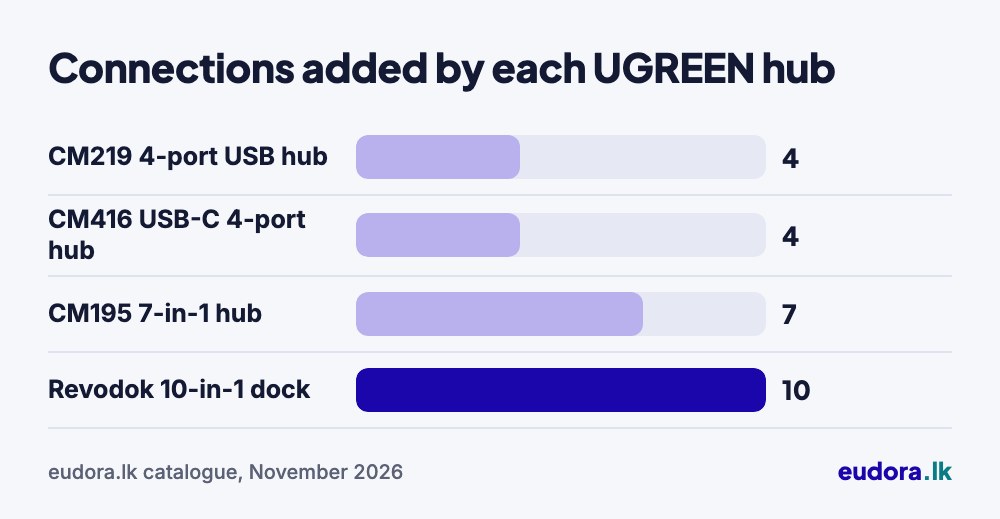
| Example | UGREEN CM219, CM416 | UGREEN CM195 7-in-1 | UGREEN Revodok 10-in-1 |
Simple USB hubs
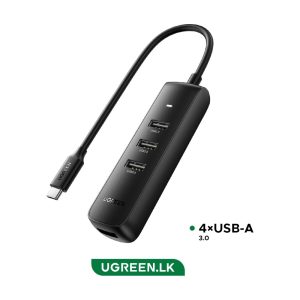
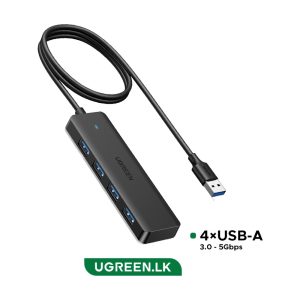
If all you need is more USB-A ports, for a keyboard, mouse, printer and flash drive, a simple hub is enough. The UGREEN CM219 plugs into a USB-A port and gives four USB 3.0 ports at up to 5Gbps for Rs 4,200. The CM416 does the same from a USB-C port for Rs 4,800, which suits newer laptops and even tablets and phones with USB-C. Both share the bandwidth and power of one port, so they suit keyboards, mice and flash drives well but may struggle with several external hard drives running at once.
USB-C multiport hubs
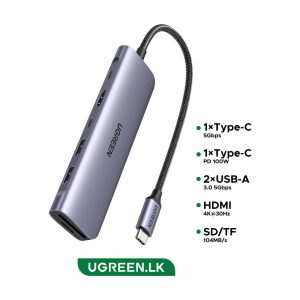
A multiport hub, often sold as a “7-in-1” or similar, turns a single USB-C port into several types of connection. The UGREEN CM195 7-in-1, at Rs 8,300, adds an HDMI output up to 4K at 30Hz, two USB-A 3.0 ports, a USB-C data port, SD and microSD card readers, and USB-C Power Delivery pass-through up to 100W. Plug your laptop charger into the hub, and one cable to the laptop carries charging, video and data.
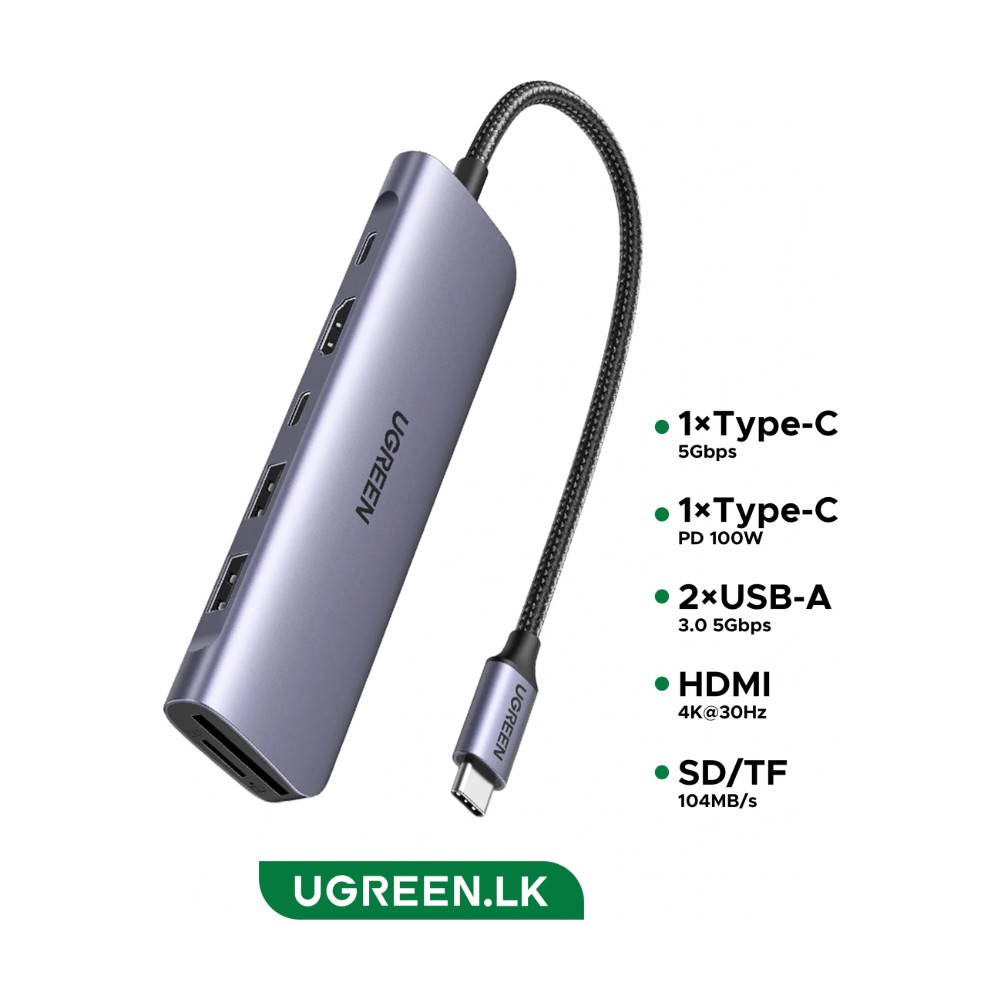
The 4K at 30Hz limit matters if you care about smooth motion. It is fine for documents, spreadsheets and video calls, but scrolling and mouse movement feel less fluid than at 60Hz. For a 1080p monitor, which is still the most common office screen, any modern hub drives it at 60Hz.
Docking stations
A docking station is the step up for a permanent desk. The UGREEN Revodok 10-in-1, at Rs 17,000, adds two HDMI outputs supporting dual 4K at 60Hz, Gigabit Ethernet, USB-A and USB-C ports, SD and microSD readers up to 90MB/s and Power Delivery pass-through. Arrive at your desk, plug in one cable, and the laptop connects to two monitors, a wired network, a keyboard and mouse and the charger at once.
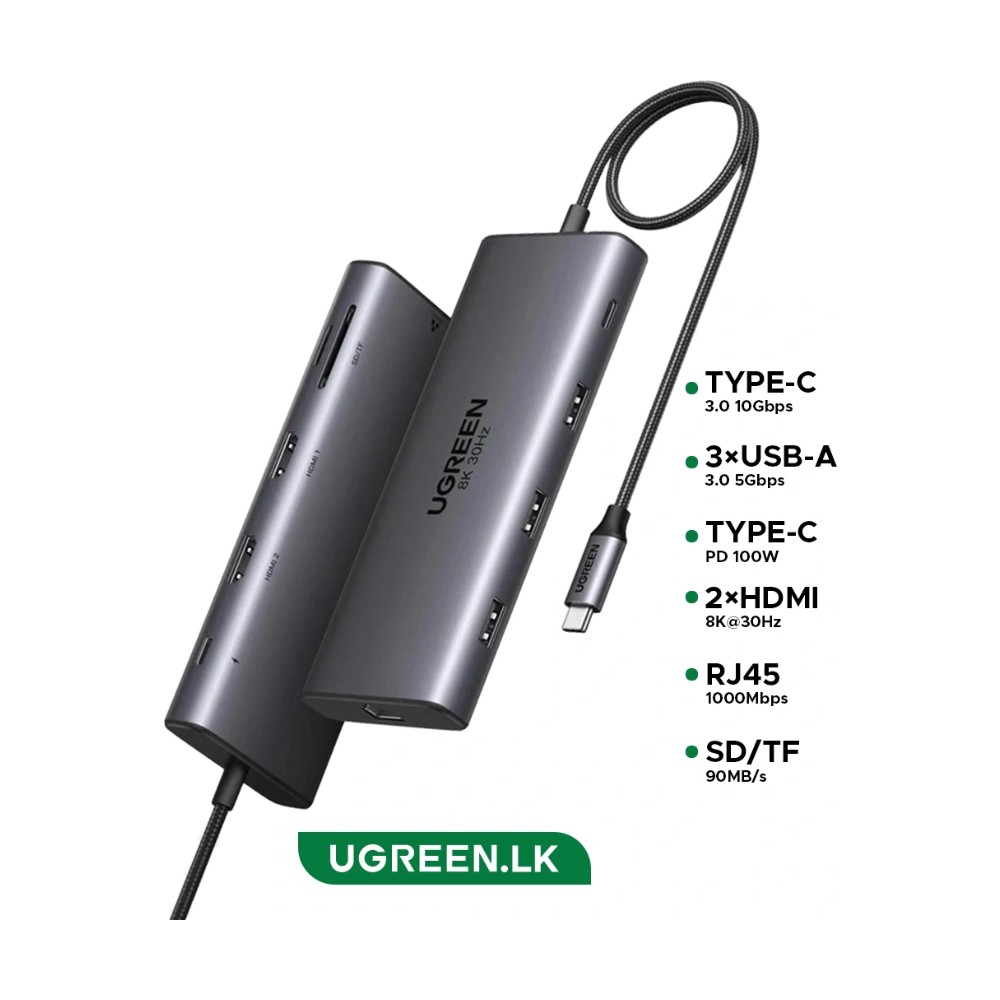
Wired Ethernet is worth having at a desk. It is faster and more stable than Wi-Fi for video calls and large file transfers, and it frees Wi-Fi capacity for phones and other wireless devices in the home or office.
-
 UGREEN
 Revodok 10-in-1 USB-C Docking Hub – Dual HDMI, Gigabit Ethernet, 100W PD
Rs 17,000
Add to cart
-
 UGREEN
 CM195 7-in-1 USB-C Hub – HDMI 4K, 100W PD, SD/TF
Rs 8,300
Add to cart
-
 UGREEN
 CM416 USB-C to 4-Port USB 3.0 Hub
Rs 4,800
Add to cart
-
 UGREEN
 CM219 4-Port USB 3.0 Hub – 1m Cable
Rs 4,200
Add to cart
Check your laptop first
Not every USB-C port can do everything. A USB-C port might carry only data, or data and charging, or data, charging and video. Before buying a hub that relies on video or charging, check your laptop’s specifications or the symbols beside the port.
| Feature | What to look for | If missing |
|---|---|---|
| Video output | DisplayPort Alt Mode, a DisplayPort logo or a Thunderbolt lightning symbol | HDMI on the hub will not work |
| Charging input | USB Power Delivery (PD) support on that port | The laptop needs its own charger |
| Data speed | USB 3.x (5Gbps or faster) | USB 2.0 ports limit drive and Ethernet speeds |
| Dual displays | Operating system support for MST, or Thunderbolt | The second screen may mirror rather than extend |
Dual displays deserve a note. Windows laptops generally extend the desktop across two monitors through a hub that uses DisplayPort multi-stream transport (MST). Many MacBooks with base Apple silicon chips do not support MST, so they mirror the same picture on both screens over a single cable, or support only one external display at all. Check your model’s specifications before planning a two-monitor desk around a MacBook.
Tip: Use the charger that came with your laptop, or one of equal or higher wattage, with a pass-through hub. The hub keeps some of the power for itself, typically 10 to 15 watts, so a 65W charger may deliver around 50W to the laptop.
Which one should you buy?
| Need | Best choice |
|---|---|
| More USB ports for a keyboard, mouse and flash drive | Simple USB hub |
| One monitor, card readers and charging on the move | USB-C multiport hub |
| Permanent desk with one monitor | USB-C multiport hub or dock |
| Permanent desk with two monitors and wired network | Docking station |
| Hot-desking office with shared desks | Docking station at each desk |
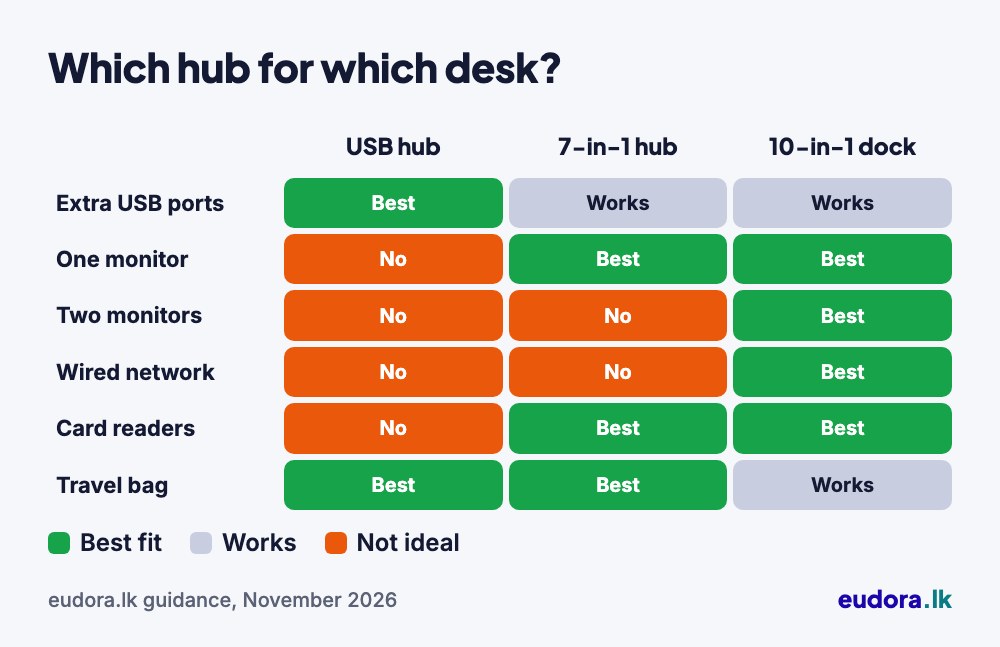
As an example, a complete home office desk with the Revodok 10-in-1 dock and a Logitech MK295 silent wireless keyboard and mouse comes to Rs 28,000, plus monitors. Moving from the 7-in-1 hub to the 10-in-1 dock adds Rs 8,700 for a second display output and Gigabit Ethernet. Our guide to keyboards, mice and desk ergonomics covers the rest of the desk, and our guide to memory cards and flash drives explains which cards suit the hub’s readers.
Troubleshooting common hub problems
Most hub problems come down to a handful of causes, and most can be fixed in a few minutes without replacing anything. Work through these checks in order before assuming the hub is faulty.
- No picture on the monitor: confirm the laptop’s USB-C port supports video, try the other USB-C port, and select the right input on the monitor.
- Laptop not charging through the hub: plug the charger into the hub’s PD port, not a data port, and check the charger’s wattage is high enough for the laptop plus the hub.
- Devices disconnecting at random: the hub may be short of power. Unplug high-draw devices such as external hard drives, or give them their own power supply.
- Slow external drive: make sure the drive is in a USB 3 port on the hub and the hub is in a USB 3 or faster port on the laptop.
- Ethernet not working: check the cable and the link lights, then update the laptop’s operating system, which usually includes the hub’s network driver.
- Hub feels hot: warmth is normal when charging and driving a display, but keep the hub in open air rather than under papers or on a soft surface.
Cables matter more than most people expect. A USB-C cable that came with a phone may carry only USB 2.0 data and limited charging, so it can cripple an otherwise capable dock. Use the cable supplied with the hub or dock, or a cable rated for both 10Gbps data and 100W charging. If a hub works on one laptop but not another, the difference is almost always the laptop’s port rather than the hub.
Keep drivers and firmware up to date as well. Windows Update and macOS updates include most of the drivers hubs rely on, and docking stations sometimes receive firmware updates that improve display compatibility. A quick update is often the fix for a monitor that flickers or a network port that drops out after sleep.
Setting up a hot-desk office
Hubs and docks are especially useful in offices where staff share desks or work partly from home. Put a dock, monitor, keyboard and mouse at each desk, connect each dock to the wired network, and anyone with a compatible laptop can sit down and plug in. Label the docks and keep a spare cable or two; USB-C cables are the most common point of failure. Our IT support team can plan and set up shared desks, docks and networking for offices of any size.
Frequently asked questions
What is the difference between a hub and a docking station?
A hub is usually small and portable and adds a few ports. A docking station is a desk unit that adds more ports, often dual displays and Ethernet, and is designed to stay in place.
Will a USB-C hub charge my laptop?
Only if the hub has Power Delivery pass-through and your laptop supports charging over that USB-C port. Connect your charger to the hub’s PD port.
Why does my second monitor show the same picture?
Your laptop may not support MST over USB-C, which is common on MacBooks with base Apple silicon chips. The hub then mirrors rather than extends.
Why is my 4K monitor choppy through a hub?
Many compact hubs output 4K at only 30Hz. Use a dock that supports 4K at 60Hz, or connect the monitor directly.
Can I use a USB-C hub with a phone or tablet?
Many phones and tablets with USB-C work with hubs for USB drives, keyboards and sometimes HDMI. Video output depends on the device.
This article was originally published on eudora.lk.