Every office that buys computers faces the same question sooner or later: desktops or laptops? Ten years ago the answer was simple, because laptops cost far more for the same performance. Today the gap has narrowed, mini PCs have arrived, all-in-ones look smarter on a reception desk, and many staff work from home part of the week. Power cuts and voltage drops still shape the decision in Sri Lanka, as do repairs and theft. This guide compares the four main types of office computer on cost, space, power, upgrades and security, using real prices from our catalogue, so you can choose the right mix rather than buying the same machine for everyone.
Key points
- A desktop gives the most performance and the easiest repairs for the money, but it needs a UPS to survive a power cut.
- A laptop costs a little more once you add a monitor and dock, but its battery rides through outages and it goes home with the user.
- Mini PCs give desktop performance in a box the size of a book and use less power than a tower.
- All-in-ones save cable clutter on reception and counter desks, but a fault can take the whole unit away for repair.
- Most offices end up with a mix: laptops for staff who travel or work from home, desktops or mini PCs for fixed roles.
The four types of office computer
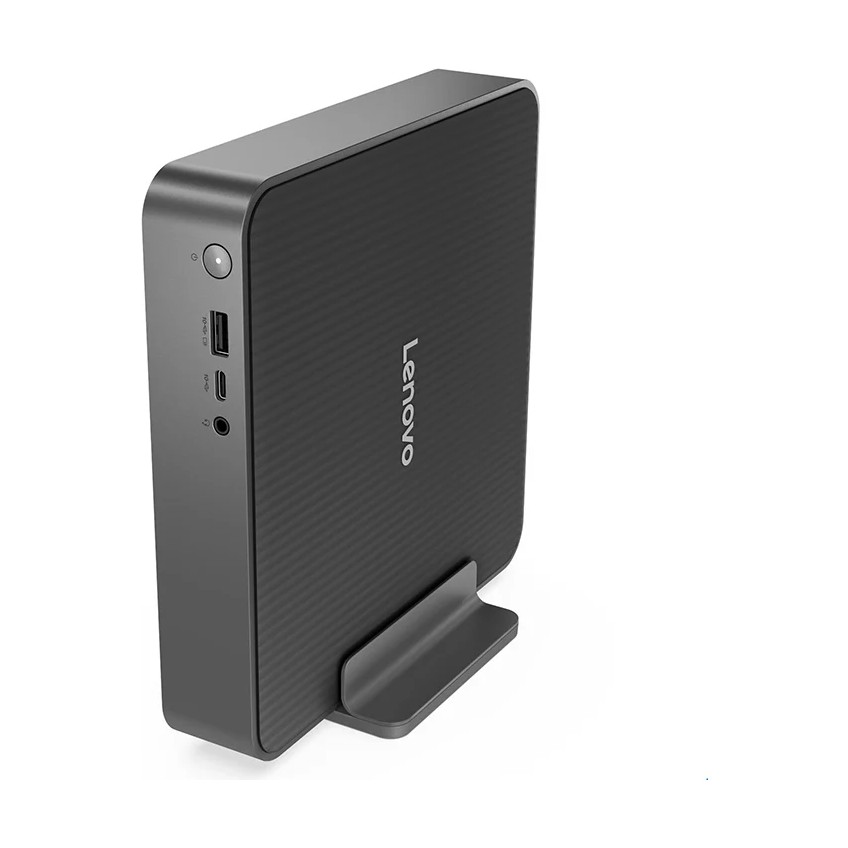
When people say “desktop” they now mean one of three quite different things, and each has a place. A traditional tower sits under or beside the desk and has room for extra drives and cards. A mini PC is a small box that can bolt to the back of a monitor. An all-in-one builds the computer into the screen. The fourth option is a laptop, usually connected to a full-size monitor, keyboard and mouse at the desk.
| Tower | Mini PC | All-in-one | Laptop | |
|---|---|---|---|---|
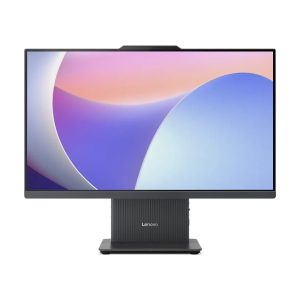
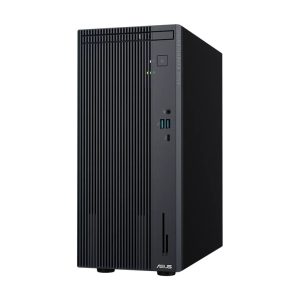
| Example | ASUS ExpertCenter P500 | Lenovo IdeaCentre Mini | Lenovo IdeaCentre AIO 24 | Lenovo V15 G5 |
| Price from | Rs 215,000 | Rs 280,000 | Rs 320,000 | Rs 194,900 |
| Monitor included | No | No | Yes, 24-inch | Built-in 15.6-inch |
| Rides through a power cut | Only with a UPS | Only with a UPS | Only with a UPS | Yes, on battery |
| Upgrades | Easy | Memory and SSD | Limited | Memory and SSD on most |
| Goes home with the user | No | Possible, but awkward | No | Yes |
What a full desk setup really costs
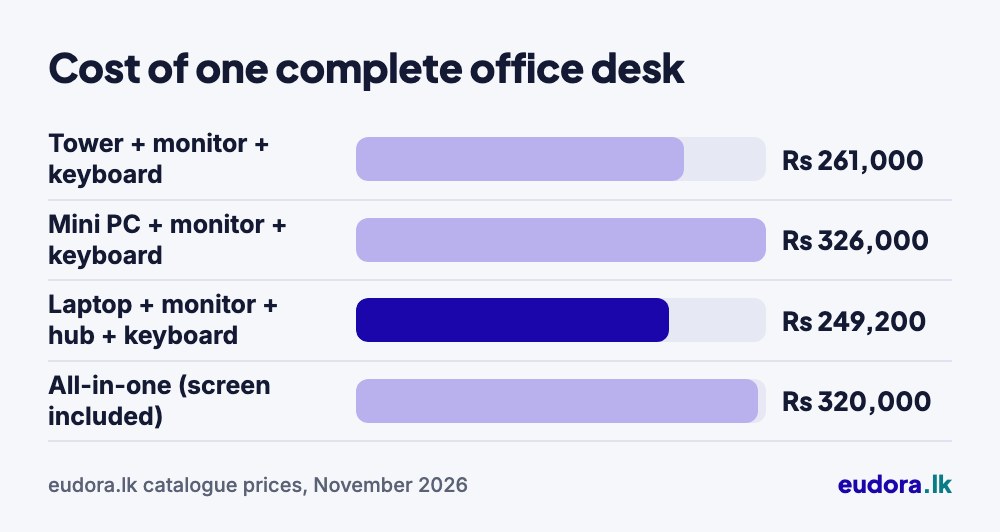
Comparing the price of the computer alone is misleading, because a tower or mini PC needs a monitor, keyboard and mouse, and a laptop used at a desk all day also benefits from a proper monitor and a hub. A fair comparison looks at the whole desk.
A tower with the ASUS ExpertCenter P500, an MSI 24-inch 144Hz monitor and a Logitech MK295 silent keyboard and mouse comes to Rs 261,000. The same desk built around the Lenovo IdeaCentre Mini comes to Rs 326,000, and the mini PC brings a newer Core 7 processor. A Lenovo V15 G5 laptop with the same monitor, a UGREEN 7-in-1 USB-C hub and the same keyboard and mouse comes to Rs 249,200. The all-in-one already includes its screen, speakers and webcam, so its price is close to the full cost of the desk.
Across five desks the differences add up. Five tower desks come to Rs 1,305,000 before software and setup. Choosing laptops for everyone adds a modest amount per desk, but saves buying separate machines for people who also work from home.
Note: Budget for genuine Windows, Microsoft 365 and antivirus as well. Most of the computers above ship with Windows, but check the specification: some business models come without an operating system. Our guide to genuine Windows and Office licences explains the options.
Power cuts and the UPS question
This is where Sri Lankan offices differ from the brochures. A laptop has a built-in battery, so a power cut does nothing more than dim the screen. A desktop, mini PC or all-in-one switches off instantly, losing unsaved work and risking file system damage, unless it is connected to a UPS.
A 650VA line-interactive UPS such as the PROLiNK PRO701SFC at Rs 11,000 keeps one desktop and monitor running for several minutes, long enough to save and shut down or for a generator to start. Add that to the cost of every desktop desk. Mini PCs help here: they draw much less power than a tower, so the same UPS runs them for longer. Our UPS buying guide explains how to size one.
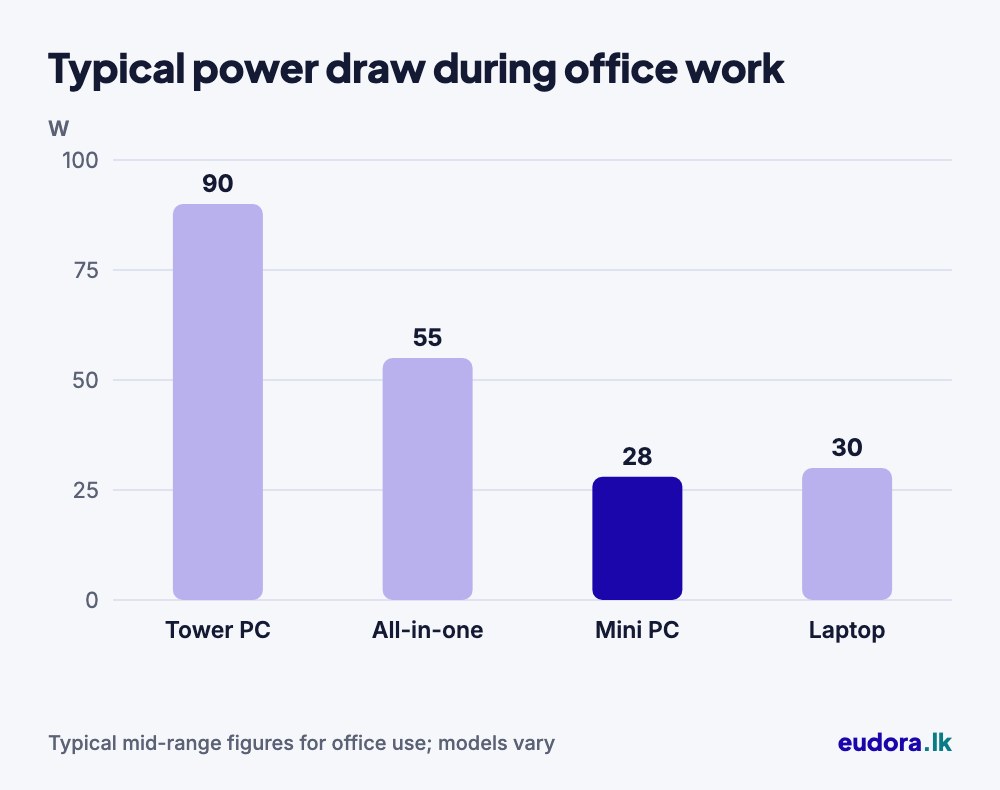
Power draw also shows on the electricity bill. A tower doing office work typically draws 60 to 120 watts, a mini PC 15 to 40 watts and a laptop 15 to 45 watts while charging. Over a year of office hours the difference between a tower and a mini PC can be a hundred kilowatt-hours or more per desk. Our article on the electricity cost of home and office tech works through the numbers.
Desk space, heat and noise
A tower takes floor space and gathers dust, which matters in offices without air conditioning. Mini PCs mount on a VESA bracket behind the monitor and disappear, leaving a clear desk. All-in-ones are tidiest of all, with one power cable and a wireless keyboard. Laptops on a stand with an external monitor sit somewhere in between.
Heat and noise follow the same order. Towers have bigger fans that run quietly at light loads but can be noisy when dusty. Mini PCs and laptops have small fans that spin up under heavy work, such as video calls with background effects. In a warm room, give any computer space to breathe and clean the vents twice a year.
Repairs, upgrades and lifespan
Towers win on repairs. Standard parts mean a failed power supply, drive or memory module can be swapped in an hour, and a tower bought today can take more memory or a second drive in three years. Mini PCs usually allow memory and SSD upgrades but use specific power adapters. All-in-ones are the hardest: a screen fault or failed motherboard often means sending the whole unit away, and the desk is empty until it returns.
Laptops sit in the middle. Business models such as the ASUS ExpertBook B1 at Rs 219,000 are designed for repair, with accessible memory and SSD slots and spill-resistant keyboards. Thin consumer laptops may have soldered memory, so buy enough at the start. Batteries wear out after roughly three to four years of daily use and are a predictable replacement cost.
A sensible plan is five years for a desktop and four years for a laptop, with an SSD or memory upgrade around the midpoint. Our SSD upgrade guide shows how much life an upgrade can add.
Security and data
Laptops leave the building, so they get lost and stolen. That is manageable if you plan for it: turn on BitLocker drive encryption (included in Windows 11 Pro), require a strong sign-in or Windows Hello, keep files in OneDrive or SharePoint rather than only on the laptop, and keep a list of serial numbers. A stolen encrypted laptop is an equipment loss, not a data breach.
Desktops stay put, which is safer for data but not automatically secure. They still need updates, antivirus and backups, and a desktop near a window or door can be stolen in a break-in. With the Personal Data Protection Act coming into full effect, every office that holds customer data should know where it is stored. Our PDPA guide covers the basics.
Tip: Whatever you buy, set it up with a standard user account for daily work and a separate administrator account. It blocks a large share of malware and stops well-meaning staff installing unlicensed software.
Hybrid work changes the answer
If staff work from home even one day a week, laptops usually make more sense. One device keeps their files, settings and applications in one place, and they can join a video call from anywhere. Buying a desktop for the office and a laptop for home doubles the cost, the updates and the licences.
A laptop with a dock at the office gives the best of both. Arrive, plug in one cable, and the laptop drives a full-size monitor, wired network, keyboard and mouse. Our guide to USB-C hubs and docking stations explains which to buy, and our dual monitor guide covers adding a second screen.
Which computer for which role?
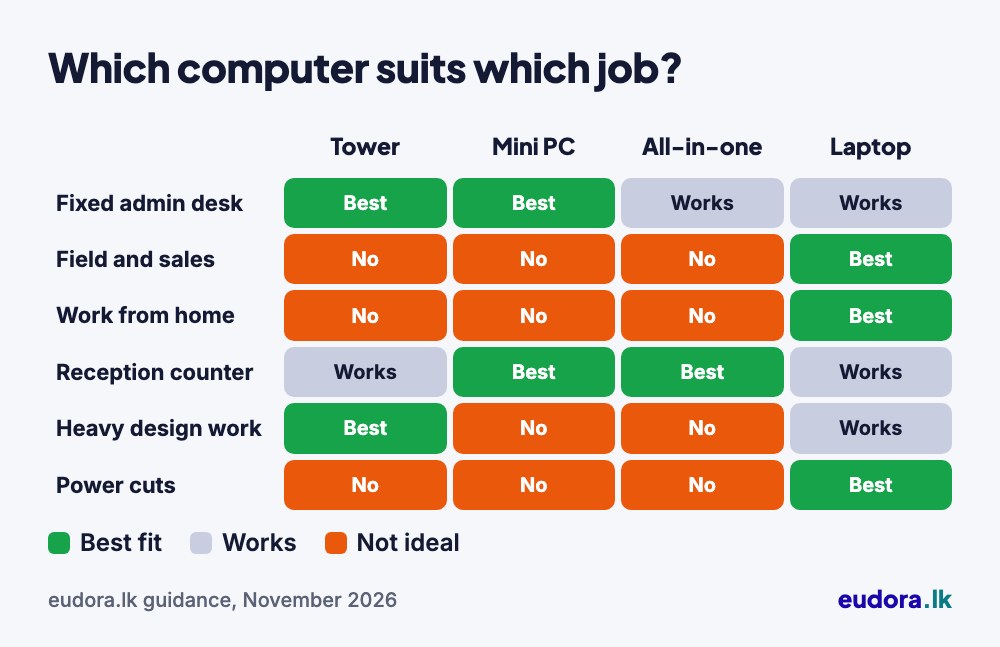
| Role | Best fit | Why |
|---|---|---|
| Accounts and admin, fixed desk | Tower or mini PC | Most performance per rupee, easy repairs, stays in the office |
| Sales and field staff | Laptop | Works anywhere, battery through power cuts |
| Managers who work from home | Laptop with dock | One device, full desk at the office |
| Reception and shop counter | All-in-one or mini PC | Tidy, small footprint, presentable to customers |
| Design, video or large spreadsheets | Tower | Room for more memory, storage and a graphics card |
For a typical five-person office we often suggest three laptops for managers and sales staff and two mini PCs for accounts and reception, all with one UPS per desktop desk and a shared backup drive. Our small office IT checklist covers the rest of the setup.
-
 Lenovo
 V15 G5 IRL Laptop – Core i5-13420H, 8GB, 512GB SSD
Rs 194,900
Add to cart
-
 Lenovo
 IdeaCentre Mini 01IRH10R Mini PC – Core 7 240H, 8GB, 512GB SSD
Rs 280,000
Add to cart
-
 Lenovo
 IdeaCentre AIO 24ARR9 All-in-One – Ryzen 5 7533HS, 16GB, 512GB SSD, 24-inch
Rs 320,000
Add to cart
-
 ASUS
ASUS ExpertCenter P500 Mini Tower Desktop – Core i5-13420H, 8GB, 512GB SSD
Rs 215,000
Add to cart
Setting up new computers properly
A new computer is only ready for work once it is updated, secured and connected to the office’s printers, shared folders and email. Allow an hour or two per machine to install updates, remove unwanted trial software, set up user accounts, install antivirus and test the backup. Our team can do this for you with our PC and laptop setup service at Rs 3,500 per device, or as part of an IT support plan.
Frequently asked questions
Is a laptop slower than a desktop at the same price?
Usually a little, because laptop processors run at lower power. For office work, email, browsers and video calls, a current Core i5 or Ryzen 5 laptop is more than fast enough.
Do I need a UPS for a laptop?
Not for the laptop itself, but the monitor, router and printer still switch off in a power cut. A small UPS for the router keeps internet running for video calls.
Is a mini PC as reliable as a tower?
Yes, for office work. Keep it ventilated and dust-free, and use the original power adapter.
Can an all-in-one be upgraded?
Memory and storage can sometimes be upgraded, but not the screen or processor. Buy enough memory and storage at the start.
How long should office computers last?
Plan on about five years for a desktop and four for a laptop, with an SSD or memory upgrade around the halfway point.
This article was originally published on eudora.lk.